
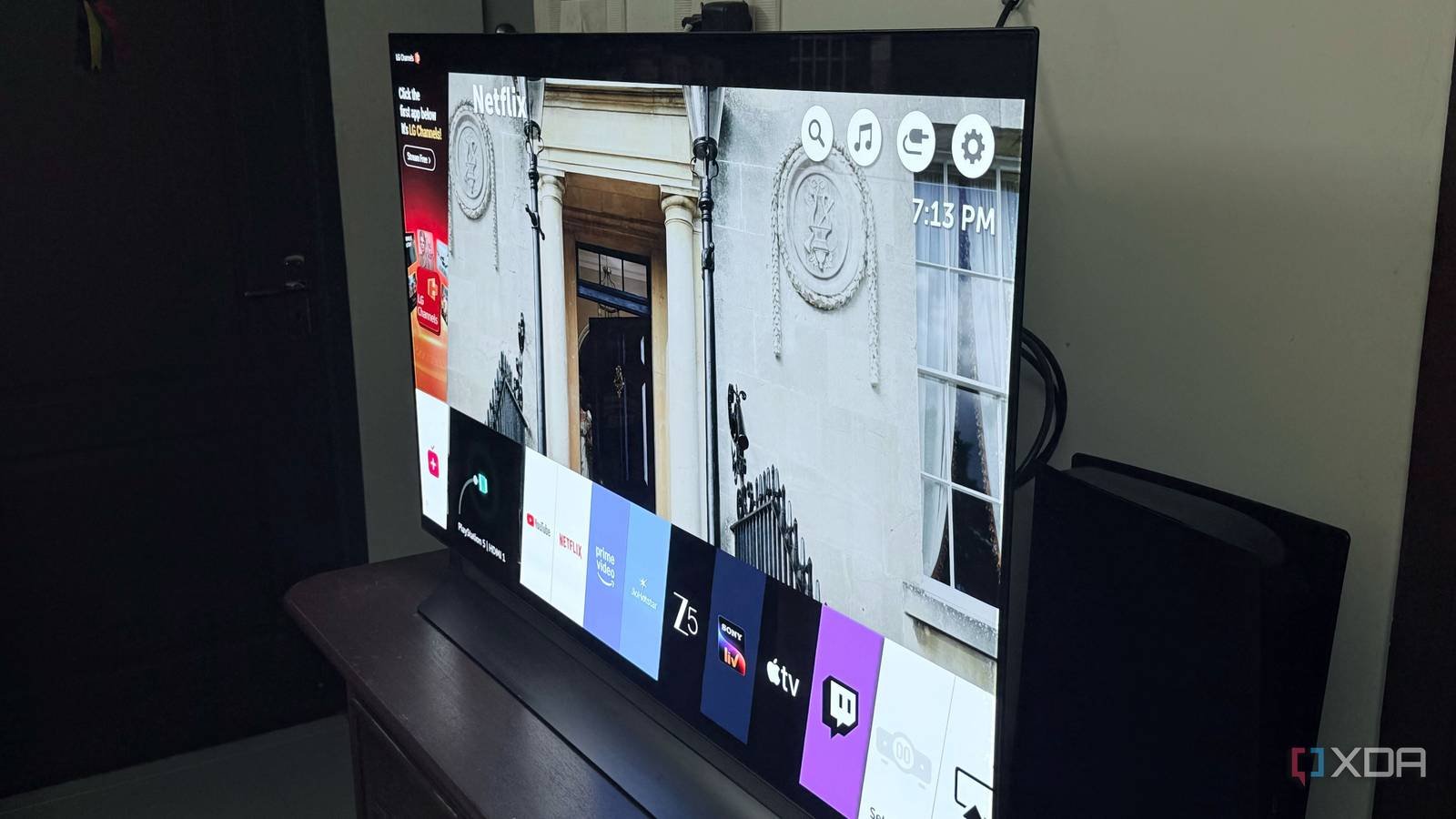
I’ll be honest, when I started using HDR on my LG C8 OLED, it didn’t look as good as it did in the showroom. Sure, it looked better than SDR, but not in the way I expected. The highlights didn’t stand out as much and the overall image just didn’t have that “wow” factor. But I knew the problem wasn’t the panel itself because it is an OLED display after all, so I decided to change the picture settings.
That’s when I realized how sensitive HDR is to your TV settings compared to SDR. Even a few incorrect changes can easily affect the image quality, and the worst thing is that some of them are enabled by default. It took me a while to figure everything out, but once I did, HDR finally started looking like I remembered, and these are the exact settings that made the biggest difference.

I left the “Standard” picture mode
It’s fine for SDR content, but HDR looks better in “Cinema” or “Filmmaker Mode”

Out of the box, most TVs use the “Standard” picture mode, which is fine for SDR content, but HDR exposes its flaws fairly quickly. The problem is that these modes increase the brightness, color and sharpness far beyond what HDR content is actually mastered. Therefore, you end up with an image that looks overly processed rather than realistic for the type of content you are viewing.
Switching to “Cinema” made a big difference right away. The image seemed a little warmer at first because I was so used to the “Standard” mode, but in reality, this is exactly how the image is supposed to look. The lights also felt more controlled rather than dull, and colors looked much more natural, especially skin tones. You can even try “Technicolor Expert” or “Filmmaker Mode” if you want a more neutral tone, but either way, going out of “Standard” or “Vivid” is what really makes HDR look like it’s supposed to.
I disabled dynamic contrast
No more clipping highlights or crushed shadow details

Dynamic Contrast seems like a smart feature at first glance because it allows your TV to constantly adjust contrast on the fly based on what’s on the screen. But that’s exactly why it doesn’t belong Already mastered HDR content with very specific brightness and contrast levels. You don’t want your TV to override that and start boosting contrast where it shouldn’t, because that’s how you end up with blown highlights and crushed shadow details instead of a balanced image.
Turning it off on my LG C8 since Picture -> Picture Mode Settings -> Advanced Controls was all it took to keep bright scenes from clipping and losing detail. Darker scenes in movies and TV shows also retained more shadow detail instead of looking squashed. Sometimes letting the content speak for itself works much better than any kind of “smart” processing your TV adds, and this is definitely one of those cases.
I stopped playing with the brightness settings.
I thought it was making my TV brighter, but it was just increasing the black levels.
This is a very silly mistake I made when I first bought my LG C8, which I’m honestly a little embarrassed to talk about. I would turn up the brightness slider, thinking I was making HDR look brighter, but all it was really doing was increasing the black levels. Instead of improving the image, it simply made everything look washed out, especially in darker scenes. This completely defeats the purpose of using an OLED TV in the first place.
Actually, the only environment you should focus onif you have an OLED, it’s OLED Light, which is usually locked at 100 anyway while watching HDR content. That’s what controls the brightness of the lights, not the normal brightness slider, and I had to learn it the hard way. Now, I leave the brightness slider at its default value, around 50, and the blacks look as good as you’d expect from an OLED panel.
Energy saving is the worst enemy of HDR
Retains maximum brightness, which HDR content depends on

I don’t mind leaving power saving enabled when watching SDR content, but HDR is a completely different story. In fact, this is one of the main reasons why HDR seemed disappointing on my TV in the first place. Unfortunately, power saving was enabled by default on my LG C8 and I realized it a bit late. Basically all it does is limit how bright your panel can reach to save power, which is the last thing you want when watching HDR content.
I actually noticed this when switching between picture modes and couldn’t understand why HDR sometimes seemed noticeably dimmer. It wasn’t the mode itself, but the power saver that kicks in and limits the brightness behind the scenes. So if HDR looks boring no matter what you tweak, this is a setting you should check first. Disabling it can also help with tone mapping, so the lights stop looking dull.
You just need to tune your TV differently for HDR
If there’s one thing I’ve learned from living with the LG C8 since 2019, it’s that you can’t use the same settings that made SDR content look good for HDR because they work differently. HDR usually needs a little more tweaking to look its best, and even a few incorrect settings leave you disappointed with your TV purchase. It definitely takes a while to better understand what each picture setting does, but once you get it right, you’ll be as impressed by the lights and black levels as you were in the showroom.




