

Running AI models locally has become much easier over the past year. Whether it’s to improve privacy, faster responses, offline access, or avoid recurring API costs, more and more people configure self-hosted LLM for daily productivity. Ollama has played a huge role in making this possible and is often the first tool people install. But once you spend more time with local AI, you realize that there are many other options that solve different problems just as well or sometimes even better. If you’re ready to move beyond your first local LLM setup, these are the Ollama alternatives that I think are really worth trying.
LM Studio
The (second) easiest way to start running local LLMs
LM Studio would be the most suitable alternative to Ollama for beginners. Instead of relying on the command line, it gives you a polished desktop interface where you can browse, download, and run models with just a few clicks. Everything from managing models to fine-tuning inference settings seems accessible, even if you’ve never experimented with local AI before.
I also like that it can expose a local OpenAI-compatible API, making it easy to connect to other apps with little additional configuration. While it’s not as lightweight as some command-line tools, its convenience more than makes up for it. If your priority is to get a local LLM up and running quickly with minimal effort, LM Studio offers one of the smoothest experiences I’ve tested and makes local AI feel much less intimidating.
Call.cpp
The foundation behind many of today’s local AI tools

If LM Studio is a local AI with training wheels, llama.cpp is the underlying engine. It’s the inference engine that Ollama runs internally, so when you use llama.cpp directly, you’re cutting out the middleman and getting closer to the metal. It runs via the command line binary, which is exactly what attracts most people. It automatically detects your hardware and configures the optimal execution path, selecting the best quantization for your CPU and deciding how many layers to offload to the GPU.
You can start an OpenAI-compatible API server with a single command, making it easy to integrate with other tools. This is not for someone who wants comfort; is for people who want to have control over every setting and take up as little space as possible. If you’re comfortable with a terminal and want maximum performance per watt, this is where you’ll end up, eventually.
KoboldCpp
A portable local LLM that fits into a single executable
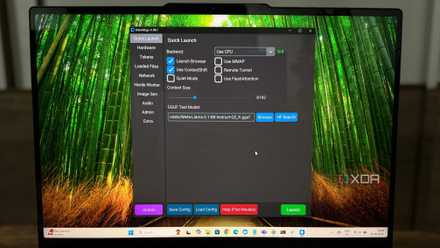
KoboldCpp was one of those tools that I didn’t expect much from at first, but it quickly impressed me. Unlike many local LLM runtimes that require a full installation, KoboldCpp is distributed as a single executable. I just downloaded it, loaded a GGUF model and was chatting with a local AI in minutes. It is based on llama.cpp but adds its own web interface, API support, and additional features, making it feel like a complete package rather than just an inference engine.
I also like that it works well on both CPU and GPU, so it’s not limited to high-end hardware. If you want something portable that you can save to a USB drive or boot up without complicated setup, KoboldCpp is a great choice and easy to recommend for both beginners and experienced users.
Jan
A polished desktop app that makes local AI enjoyable

If you’re looking for something that’s more like ChatGPT than a command-line tool, Jan is worth a try. What immediately caught my eye was its clean, modern interface that makes chatting with local models feel familiar and intuitive. Setting it up was easy and I was able to download it and switch between models without having to deal with complicated commands.
Jan is not limited to local AI; You can also connect to cloud providers, making it easy to keep everything in one place if you use both. Another nice addition is its OpenAI-compatible API, which allows other applications to connect to it with minimal effort. It may not offer as much low-level control as tools like llama.cpp, but that’s not its goal. If you value a refined user experience and simplicity, Jan strikes a great balance between ease of use and flexibility.
vllm
The ideal option to offer master’s courses at scale

Unlike most of the tools on this list, vLLM is not designed to be a desktop application for chatting with local models. Instead, it is designed for developers who need to provide LLM services efficiently through an API. What impressed me most was how well it handles multiple requests simultaneously while maintaining low response times. It uses optimized memory management and continuous batching to extract more performance from the same hardware, making it a popular choice for production workloads.
For someone building an AI application, hosting a chatbot, or exposing models to multiple users, vLLM is worth considering. It requires a little more technical knowledge than tools like LM Studio or Jan, but that’s because it solves a different problem. If you care about speed, scalability, and efficient model serving, vLLM is one of the strongest alternatives to Ollama.
Msty IA
A workspace for local and cloud AI
Msty AI is one of the most polished AI clients I’ve used, especially if you regularly switch between on-premises and cloud models. Instead of focusing solely on model management, it provides a complete workspace for chatting, organizing conversations, and working with documents. I like that it supports Ollama, LM Studio, and other local providers, while also allowing you to connect services like OpenAI, Anthropic, and Google AI from the same interface.
Features like quick librariesChat folders, multi-model support, document analysis, and web search make it feel more like a productivity app than just another chatbot. The interface is clean, responsive, and easy to navigate, even with multiple conversations open. If you want a single place to manage local and cloud AI without having to constantly switch between different applications, Msty AI is definitely worth a try.
You don’t have to stop in Ollama
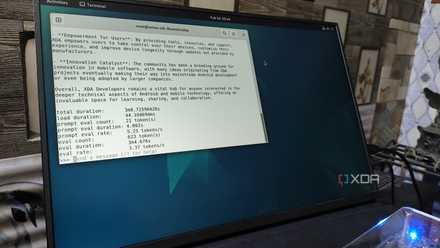
Ollama is popular for a reason, but it doesn’t have to be the only tool in your local AI toolkit. As your workflow evolves, you may find that another app is a better fit for the way you work, whether it’s a polished desktop experience, greater control over performance, faster model serving, or a unified workspace. The good news is that most of these tools can be tried for free, so experimenting costs nothing except a little time. Try a few, see which one fits your workflow, and don’t be surprised if your favorite local LLM configuration It ends up looking very different from where it started.



