
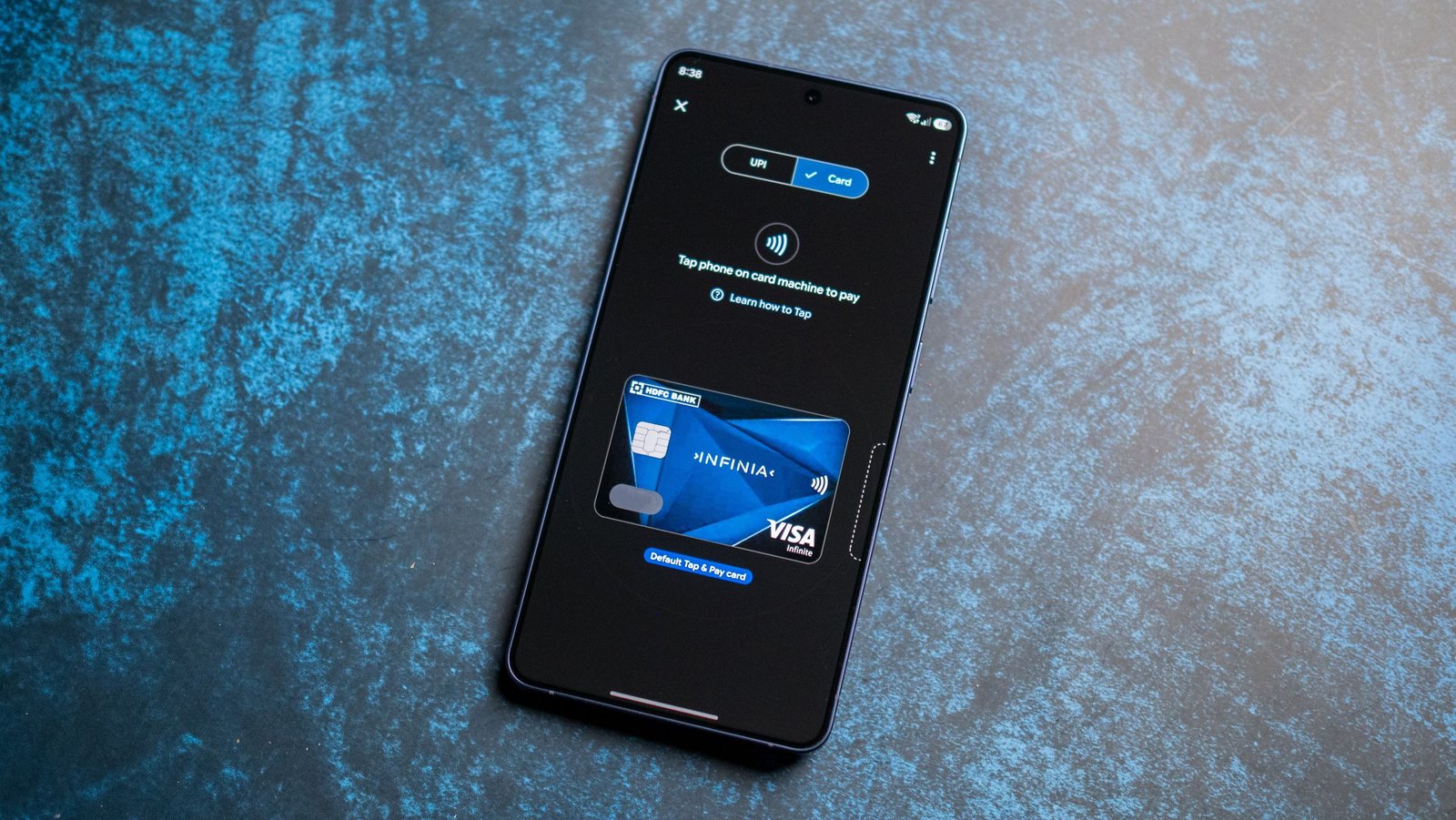
Every time I take out my phone to pay in a store, the cashiers assume that I will pay through UPI. While the payment infrastructure has many advantages, I prefer credit cards, so I use Google Pay’s Tap to Pay feature. Google rolled out the feature in India back in 2020, but it was limited to just two banks and, unsurprisingly, didn’t gain much traction.
But Google developed the feature over the last five years and Tap to Pay works with most major debit and credit cards issued in India. I used it with my HDFC Infinia along with Axis and ICICI cards and it works flawlessly. The best part is that because all POS machines in retail stores have UPI availability, they get NFC by default, so you can use Tap to Pay to pay with your phone at virtually any retail store in India.
What is the Google Pay Tap to Pay feature?
The Tap to Pay feature uses the NFC protocol to enable contactless payments. You simply add your debit or credit card to Google Pay and your card is stored virtually. Then, when you need to make a payment, simply open Google Pay, go to the Tap & Pay menu, choose the card you want to pay with, and hold your phone close to the point-of-sale machine; It’s that easy.
Article continues below.
The feature is so convenient that I haven’t bothered taking out my wallet to pay in over a year; Tap to pay works everywhere and is no problem. Registering a card is as simple as it sounds; Most Visa and MasterCard network cards issued in India are eligible, and you can even add some RuPay credit cards. For most things related to banking in India, Amex cards cannot be added to Google Pay, but they can be added to American Express.
What’s particularly nice is that there are no transaction limits; I used the feature to pay bills exceeding INR 50,000 (we went a little overboard at Ikea) and in these scenarios, you will need to enter the card’s PIN to authorize the transaction. Google Pay uses a tokenized system where it creates a virtual card number, so your actual card details are not sent when you make a payment.
How to enable Tap to Pay

It’s pretty easy to add your debit or credit card to Google Pay and get started with contactless transactions using Tap to Pay. Here’s how to get started:
- Launch Google Pay.
- Go to Tap and pay.
- Choose Add.
- Add your card details and select Save and continue.
- You will need to authenticate via SMS.
- Once this is done, your card is added to Google Pay and you will see it in the Tap & Pay section.
I’ve been using the feature for a few years and haven’t had any problems. It’s always great to be able to pay with my phone and there is an instant alert that appears when the transaction is made.
The feature also works reliably abroad, and I didn’t see any problems paying with Google Pay in the US, UK, Spain, or any of the dozen other countries I’ve been to in the last two years (aside from China, obviously). So if you haven’t set up Tap to Pay in Google Pay yet, now is the time to do it.



