
Android Auto is essential if you want to access your phone from your car’s infotainment system without having to look at the screen. But as convenient as it is, all those notifications that keep popping up while you’re driving are more than a little annoying; They can also be a dangerous distraction.
While Android Auto has a built-in option to turn off message notifications, it’s not perfect if you still want alerts from specific apps or people. Fortunately, there is a more advanced way to customize these notifications while driving, but the problem is that the option is not within Android Auto.
This setting turns on Do Not Disturb when your phone connects to your car
If you hate receiving notifications while driving, this is the option to enable
One of the biggest annoyances I’ve had since I started using Android Auto is all the Notifications I keep receiving while driving.. While I don’t mind being notified if a parent calls or texts me, I really don’t appreciate the distraction caused by my friend’s back-to-back Discord messages appearing on my car screen.
By default, Android Auto lets you turn message notifications on and off, and you can even mute group chats, but it still lacks the more refined settings many of us crave.
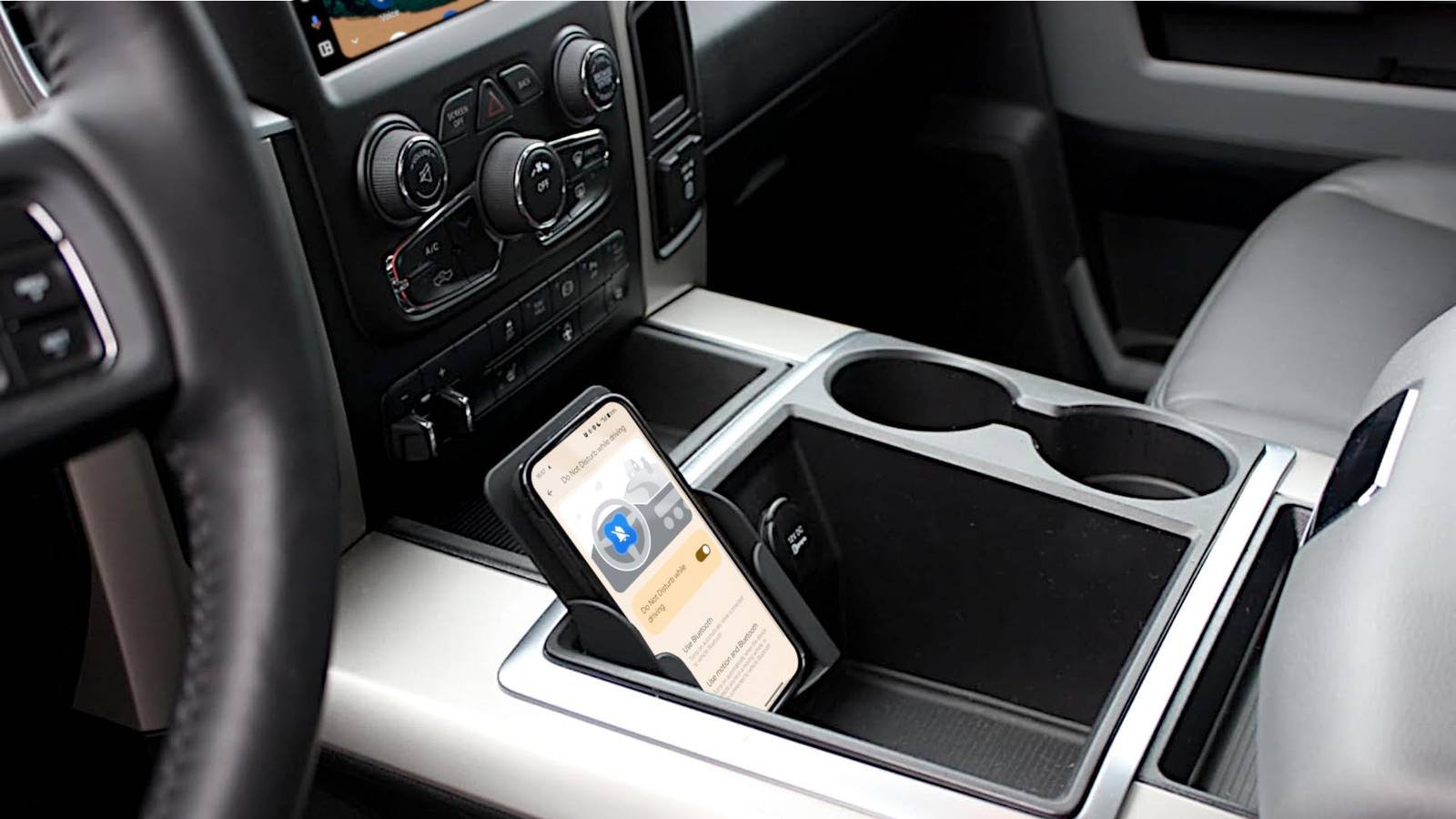
Fortunately, most newer Android phones have a special driving mode that you can enable in the phone’s settings. It’s separate from Android Auto, but it integrates nicely because it turns on when your phone recognizes that it’s connected to an Android Auto screen.

How exactly this option behaves varies between phone brands. On my OnePlus 15, the option only enables Do Not Disturb, while my wife’s Samsung Galaxy S23+ Drive Mode acts more as an automation engine, with a separate Do Not Disturb mode and a few additional options. The Google Pixel’s driving mode is similar to Samsung’s, although it is a little less customizable.
Regardless of which phone you have, this option can transform your Android Auto experience because you no longer have to activate Do Not Disturb every time you get into your car. If you haven’t used it lately because you can’t handle notifications, this might be the solution you’ve been looking for.
You can customize exactly who and what happens
Just let the important things pass
Driving mode works through Do not disturbso you get the same level of control over notifications as with your phone’s DND. This means you can choose which apps can send notifications and, more importantly, which contacts can call and send you messages. You can let all calls and/or messages through, but if you want to block absolutely everyone except your closest family and friends, this is the best way to do it.
I personally set it up so anyone can call and message me, since there’s a good chance they’ll meet someone and call me to let me know plans have changed. The biggest feature for me is that I can finally block all app notifications except for a few that I want to be alerted to, as well as my regular calls and messages.
If you have a Samsung phone, Driving mode offers more customization than the simple automatic Do Not Disturb on my OnePlus 15.
For starters, Driving mode’s DND settings are separate from your phone’s normal Do Not Disturb mode. For example, you can choose to receive notifications only from your favorite contacts and repeat callers in case of emergencies in Driving mode, while allowing most calls and notifications in your normal DND.
You can also set custom actions to activate when driving mode is enabled, such as opening an app, performing a specific phone or app action (such as enabling cellular data), reading notifications aloud, or activating Bixby voice activation.


How to enable the option
It’s just a few taps away
Enabling driving mode on Samsung phones is very simple. Gonna Settings > Modes and routines > Driving > Begin. Set it to activate when Android Auto is connected, then customize its options as you like.


On Pixel phones, the option is on Settings > Modes > Driving.

If you have a OnePlus 15 like me, the option is below Settings > Security and emergency > Silence notifications while driving. From there, you can set it to automatically enable Do Not Disturb as soon as it detects a Bluetooth connection to a car, or both when Bluetooth is connected and when you’re in a moving vehicle.

If you have an Android phone from a brand not mentioned here, try searching for a similar option by typing “drive” in the Settings search bar to see if anything appears. Even if your phone doesn’t have a dedicated mode, you can always set up and enable Do Not Disturb manually, potentially via mapping it to the physical button on your phoneif you have it, to keep the process as smooth as possible.

This should have been integrated into Android Auto
Security features like these need better integration
While I’m glad that most phones now offer a way to enable Do Not Disturb While Driving, with varying degrees of customization, this is an option that should really be used. integrated into Android Auto. That way, everyone could benefit from this important safety feature, even users with older phones that don’t have a dedicated driving mode.
I’m not sure if it’s too late, but I think Google could make it happen, given how really useful it is.




