
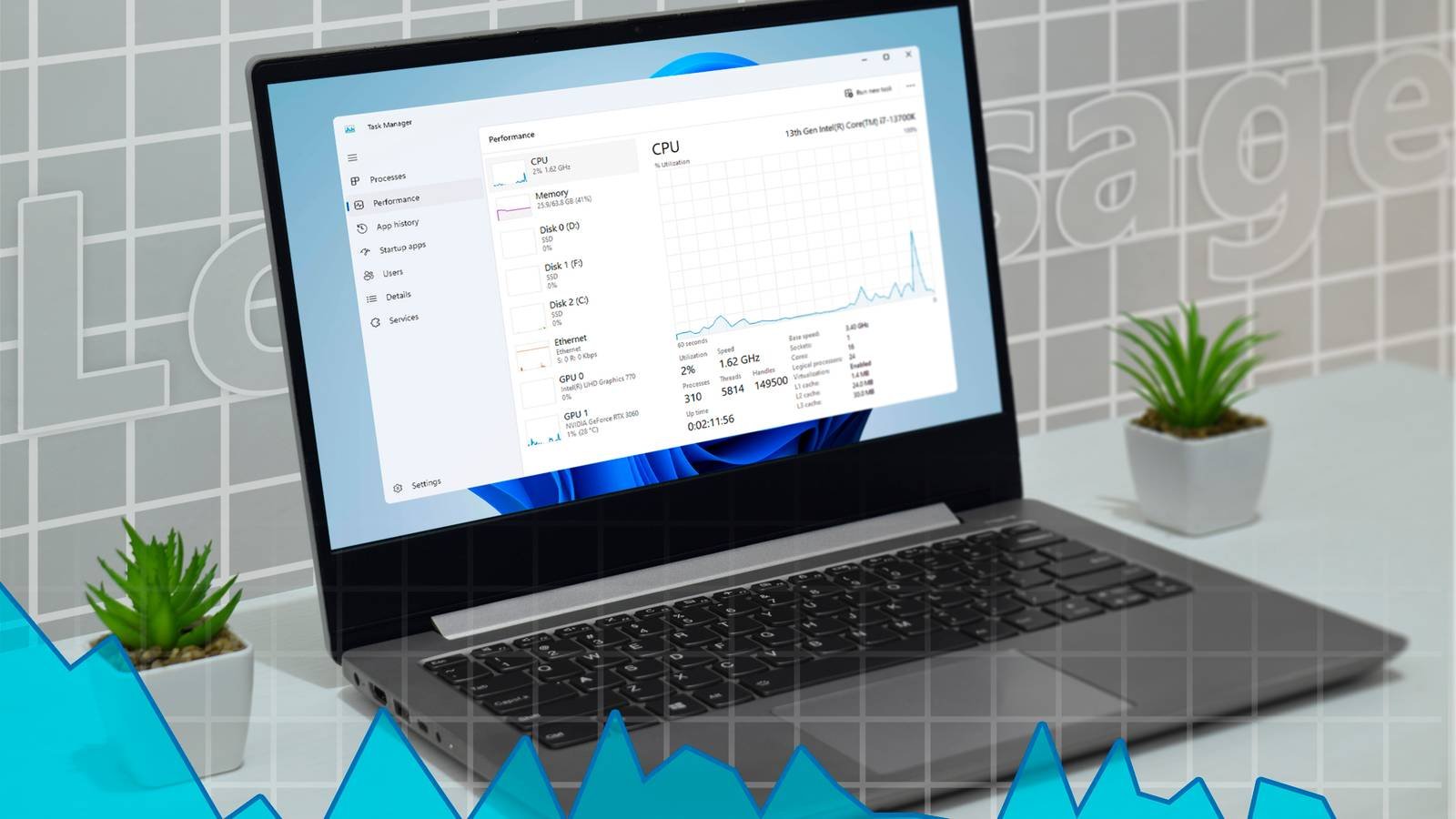
No Windows experience is complete without occasionally opening the Task Manager to determine which application is using all your RAM or to end a program that has been frozen for ten minutes with no hope in sight. But it’s not even the best tool for the job; There is something else you should use instead.
Task Manager – Iconic and Versatile
But something is missing
Task Manager is practically synonymous with Windows now, largely because it is one of the most used utilities in the operating system.
Do you need to end an unresponsive application? Open Task Manager to do so. Do you need to see what your resource utilization is like? Task Manager has your back. You can even control your startup apps from Task Manager, which is extremely convenient compared to older methods.

However, Task Manager only offers a small glimpse of what’s really happening with all the applications on your PC. If you have a problem, you need something that can give you more information.

Task Manager is not always useful
I already know there is a problem, just help me fix it.
The most common reason people launch Task Manager is to close an app that is not working properly, lagging, or is completely frozen. Unfortunately, Task Manager can’t tell you much about the problem. Really, the only thing that can What it tells you is how much system resources an app is using and where the executable is stored on your PC.

It is also quite opaque. If you’ve ever opened Task Manager and seen a long list of svchost.exe with no context, you’re not alone: Task Manager simply can’t display the relevant information.

If you’re troubleshooting some kind of problem or just want more information, you’ll need to look elsewhere.
Process Explorer should be your first stop, as it solves all of those problems and more.
Process Explorer is Task Manager dialed to 11
All the power of Task Manager, and more power
Process explorer(originally a third-party app that Microsoft acquired in the early 2000s) takes the best parts of Task Manager and gives you so much more.
Unlike Task Manager, Process Explorer is designed with troubleshooting and advanced users in mind.
Take for example svchost.exe, a native Windows process that hosts various Windows services. In Task Manager, all you will see is a long list of Service Host or svchost.exe with no explanation. In Process Explorer, on the other hand, you get all the details you could want.

If you hover over the process, you can instantly see which executable it is associated with and what command line arguments the process was started with. If you want even more details, simply right-click on the process and go to “Properties.” There you can get a lot of information, including performance history, executable location and security details, and a little about what the app does in real time.

If you’re having a problem with a Windows service malfunctioning (a problem that’s still relatively common), this is a great place to start your research.
Once you know what you’re dealing with, you can use Process Explorer to kill or restart any problematic processes.

You can also get a DMP file or dump of a process. These are not always easy to resolve, but they can provide a lot of information about what went wrong.
Process Explorer makes it easy to detect a virus
I see you!
While Windows has gotten much better than before at preventing malware infections, the amount of freedom given to users to install any app they want still leads to malware infections quite regularly.

Unfortunately, detecting malware is not always easy. You see a strange executable in Task Manager (or Process Explorer) and wonder where it came from and if it might be a virus. Luckily for all of us, services like VirusTotal exist, allowing you to compare files and executables you find with known malware and run a file through dozens of antivirus scanners simultaneously. All you need to do is upload the file in question.

Process Explorer automates everything. All you need to do is right-click on your unknown process in Process Explorer and select “Check VirusTotal.com”.

The executable file is then compared to the VirusTotal database and the results are displayed in a column on the right. In the case of Discord.exe, which I knew to be a safe and reputable application, VirusTotal shows that none of the 77 anti-malware programs detected Discord as malware.

If you want a detailed breakdown, you can always click on the result in question to go to the VirusTotal page.

This feature has been around for years, but few know about it, which is a shame, it’s amazing.
I don’t bother with Task Manager anymore
Given how much more capable Process Explorer is, when I have an app that’s not working properly, I don’t even start Task Manager anymore. I go directly to Process Explorer using a shortcut I created with AutoHotKey instead.



