
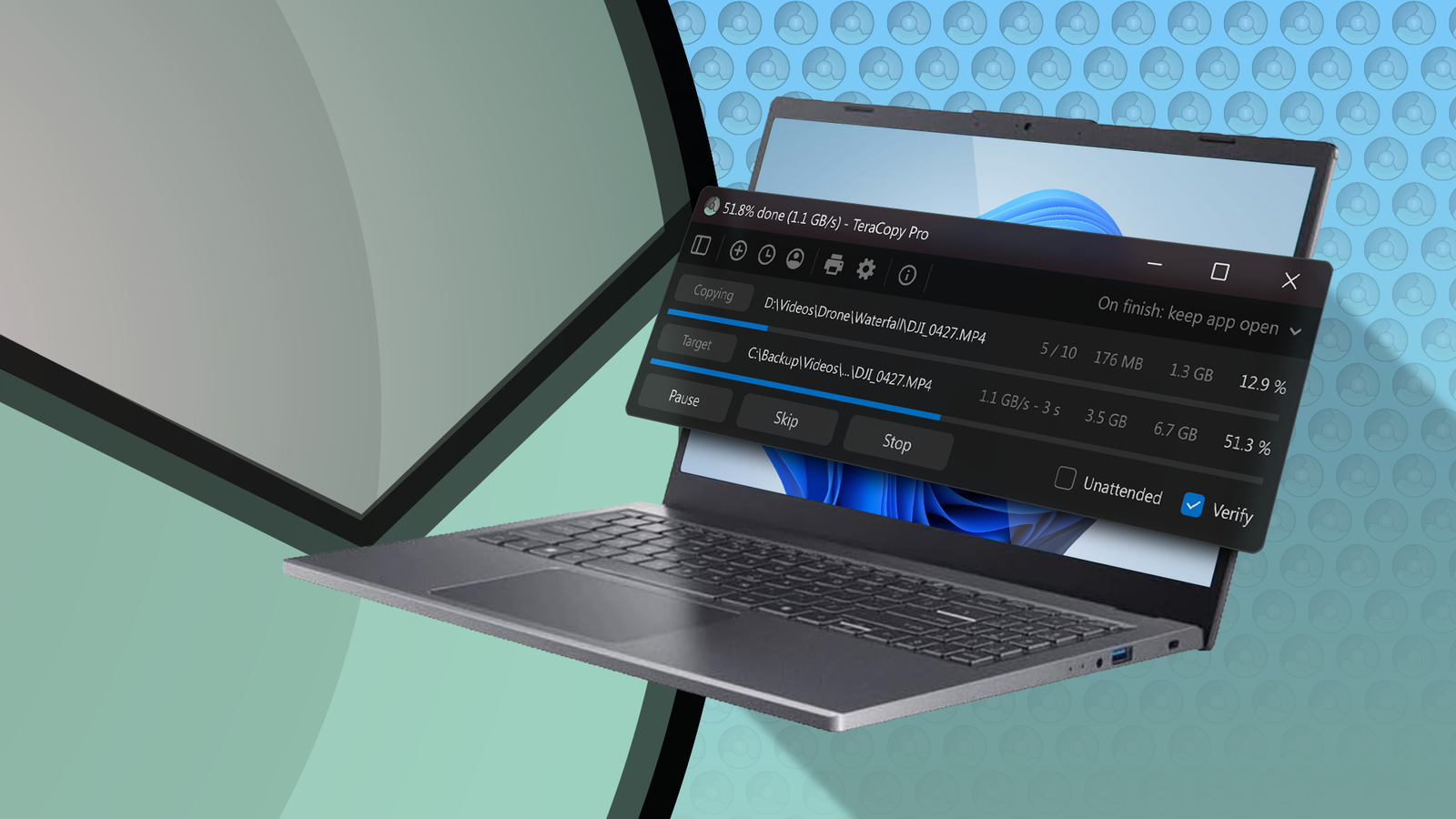
Do you remember TeraCopy? This utility software was quite famous in the Windows 7 era and offered a better way to move files between locations than Windows Explorer. You may be surprised to learn that the tool still exists; in fact, I still prefer it to what we have in Windows 11.
Faster than File Explorer
(But only in certain cases)
Most people would just switch from the default file transfer mechanism in Windows 11 to TeraCopy if it offers better transfer speeds. Fortunately, TeraCopy lives up to this expectation. However, you won’t notice a speed difference when transferring a small number of files. In fact, in my testing, I found that both the Windows 11 file transfer system and TeraCopy offered an average speed of 35 MB/s when transferring 3 GB of files from one location to another.
But I started to notice a difference when trying to move large files. While moving a 100 GB folder, which was the Borderlands 3 installation folder, I observed that TeraCopy maintained a constant speed of around 45 MB/s, while the Windows file transfer system speed peaked at 43 MB/s. Additionally, the transfer speed sometimes dropped to around 5 MB/s. Although the same slowdown also occasionally occurred with TeraCopy, it occurred more frequently with the Windows file transfer mechanism than with TeraCopy.
While the difference between the speeds of TeraCopy and the Windows file copy system is only 2 MB/s, this small difference can have a big impact when you zoom out and look at the total time each takes to complete the copy process.
Let’s say I get a constant transfer speed of 45 MB/s with TeraCopy. In that situation, it will take about 38 minutes to transfer the 100 GB folder. In contrast, the Windows file copy system will take about 40 minutes to copy the same folder at a constant speed of 43 MB/s. If you’re doing an even larger transfer, like copying an entire drive, those differences can add up, sometimes up to hours.

TeraCopy protects you from user errors
You are generally your own worst enemy.
If you have been using Windows for a long time, you have probably encountered situations where Windows automatically cancels the copy process when it encounters an error, such as when the external drive you are copying files and it disconnects. Unlike the Windows copy system, TeraCopy recognizes that the destination drive may have been accidentally disconnected and pauses the process instead of canceling it completely.
As soon as you reconnect the target device, you can click the resume button to continue the file copying process from the point where it was paused.
Another situation you might relate to is accidentally dragging folders from one location to another. But with TeraCopy as the default tool for copying files, you don’t have to worry about this mess. every time you copy and paste or drag and drop a file or folder from one location to another, TeraCopy asks for confirmation before executing the process.

While to some this may seem like an extra step, to me it’s a little extra security mechanism to prevent accidental transfers. However, if you do not want to encounter this additional confirmation message, the next time you copy files using TeraCopy, click the gear icon and uncheck the “Show next time” option.

You can queue for transfers
No need to wait
Windows allows you to copy files to multiple locations simultaneously. While this may seem like the best approach, unfortunately it is not. Although you may not notice a major difference when copying a handful of small files to multiple locations at once, things will get complicated when you do it with dozens of large files.
When Windows tries to copy huge files to multiple locations simultaneously, it puts a lot of strain on your system’s processor and storage drive. As a result, you may experience a slowdown in overall system performance. The situation will be even worse if you have a device with small amount of RAMlike 8 GB.
However, with TeraCopy you don’t have to worry about system slowdown, because instead of moving files to multiple locations simultaneously, it creates a queue based on the order in which you moved the files. For example, if you move four files to different locations using TeraCopy, the tool will start moving the first file and won’t touch the second until the transfer of the first file is complete.

The only drawback to this approach arises when you need to copy a handful of small files to different locations. In such cases, copying all files simultaneously would be faster than copying them one by one. However, when you need to move multiple large files, TeraCopy’s queue approach can be very effective.
Maintains file transfer history
Don’t remember where you put that file? It’s not a big deal
A unique feature of TeraCopy is that it keeps a record of all transfers made through it. You can check this by opening the TeraCopy app and clicking on the “Sign In” option.
You will find all the details about the file transfers, including the source and destination folders, the date the transfer was executed, and if any errors were encountered during the transfer process. Additionally, there is an auto-scroll feature that ensures that TeraCopy automatically skips any corrupt files it encounters during the transfer process and keeps the transfer running.

At the end of the transfer, you will be asked what you want to do with the files that were not copied during the process. I rely on this feature a lot when I have to transfer large files overnight. I just start the copying process and go to sleep. Even if Teracopy encounters a problem copying a particular file, it simply skips it and moves on to the next file, instead of waiting for my confirmation before continuing.
Is TeraCopy perfect?
It’s just a tool in my arsenal
It is almost impossible to find an application without disadvantages and TeraCopy is no exception. In terms of features, I must say that it is much better than the default Windows copy mechanism. However, the interface can be confusing. Having used TeraCopy for almost a decade, I’m completely used to it, but a newcomer may find its interface a little overwhelming.
If you want to copy a file or folder using the TeraCopy app, you must first select the source folder and then choose the destination folder. All of this may seem like a lot of work to someone who is just starting to use the app.
Additionally, there are many advanced options, such as Test and Verify, that read the source and destination files, create checksums, and compare them. The app also allows you to manually choose the error detection standard. While all of these features may seem like a dream come true for an advanced user, an average user who has downloaded the app just to copy files may find them a little intimidating.

I would stick with the free version.
TeraCopy also offers a premium plan that costs $29.95. Should you consider purchasing it? Maybe not. First of all, there are no out-of-the-box features on the Pro plan that would justify the purchase for most people. Secondly, there really is no point in spending money on an app whose only function is to copy and paste files from one location to another if you don’t use any of the pro features, such as advanced filtering options.



