
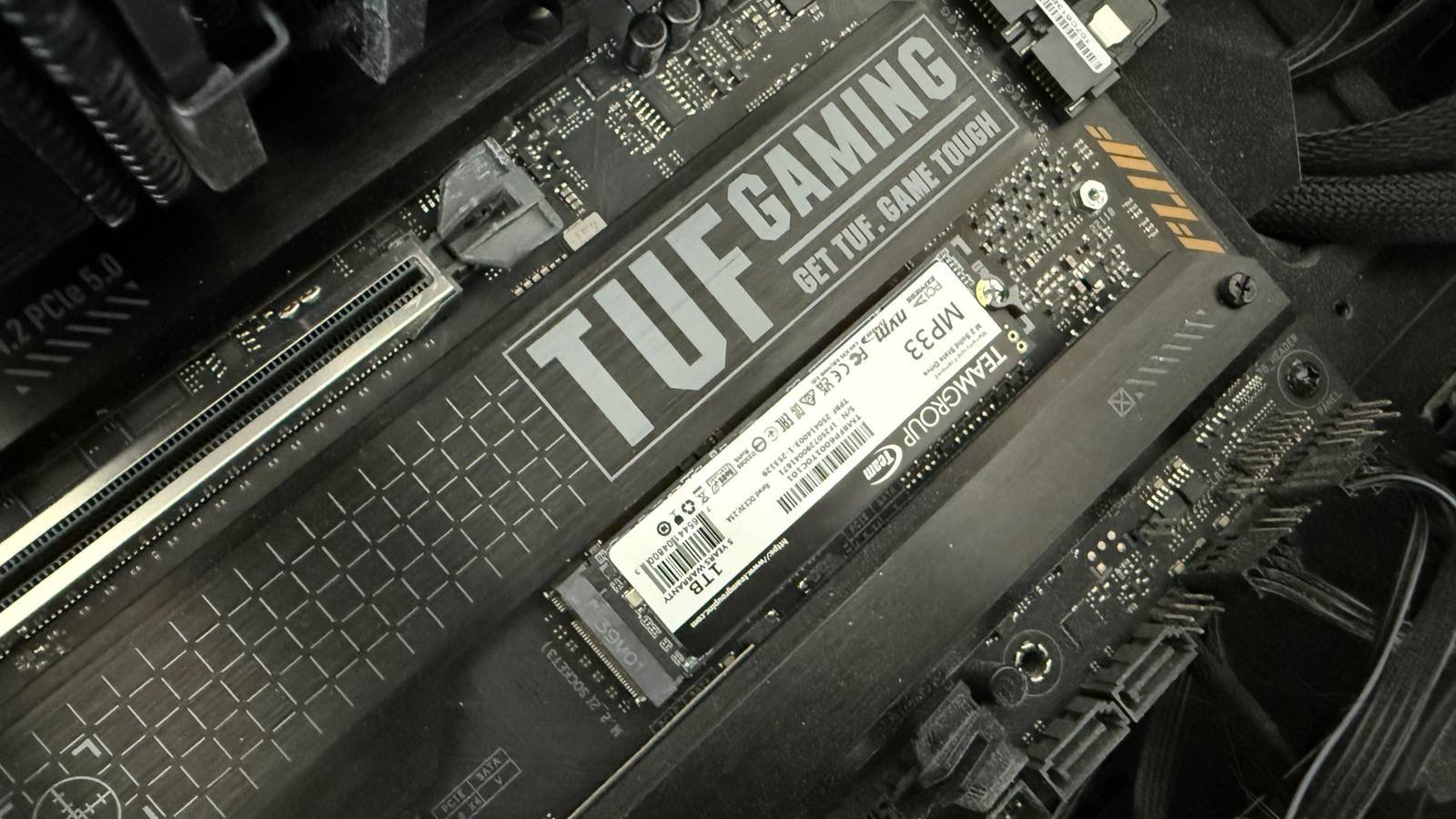
Modern operating systems on modern SSDs mostly just work. Plug in a drive, install the operating system, and the defaults will give you a system that boots, runs games, and handles daily tasks without any manual intervention. Compared to a decade ago, we’ve come a long way, but the default drives and motherboards shipping today are tuned for the widest possible range of hardware: battery-powered laptops, desktops with mixed SSD and HDD configurations, systems with Limited RAMand users who will never open a BIOS. For an enthusiast, some of these defaults are not ideal and leave potential performance and endurance on the table.

Update SSD firmware
It can be done before the operating system.

If you choose to do anything on this list, I would prioritize this one. SSD firmware matters more than people may assume. For example, the Samsung 990 Pro shipped with firmware that caused health indicators to degrade unusually quickly, and this was fixed by a firmware update. Users who purchased units with day 0 firmware and did not update them would be susceptible to this type of error, and it’s not just Samsung units. Several Phison-based drives received updates that fix stability issues, some of which arose dramatically during the launch of Windows 11 24H2 when certain models started crashing with the new host memory buffer behavior. WD and SanDisk drives required firmware updates before 24H2 was installed on affected systems.
You can install the firmware after the operating system, but really, the ideal window is before you’ve loaded the system with games, apps, and settings that you’d rather not put at risk. Once Windows is installed and the drive is working, any firmware update carries a small but real risk of something going wrong, and the consequences only increase the longer the build is used.
Samsung and Crucial offer bootable ISOs that can update firmware without a working operating system, which is the cleanest option if you’re willing to deal with UEFI and the secure boot gymnastics those tools sometimes require. WD, SanDisk, and Kingston primarily direct firmware updates through their Windows-based dashboard tools. If your only option is through Windows after installing the operating system, it is better than not updating at all.

Check NVMe PCIe mode and lane assignment
If you have multiple drives, this is a must
Motherboards with multiple M.2 slots share PCIe lanes with other devices, and which slots share which lanes really depends on how your motherboard was designed and what chipset revision your system is on. Placing drives in the wrong slots can mean they auto-negotiate to fewer lanes and older PCIe versions.
In BIOS, verify that each M.2 slot is set to the correct PCIe generation. Autonegotiation usually gets it right, but forcing Gen4 or Gen5 manually removes a variable. If your primary boot drive isn’t running at its rated speed, check your motherboard’s manual to make sure it’s occupying the correct slots before messing with manual negotiation settings.

Disable fast startup
Largely unnecessary on fast SSDs

Quick start made sense on mechanical drives with slow start times. On a modern NVMe system, the boot process is already fast enough that the feature tradeoffs aren’t worth it. It makes small, largely inconsequential writes to the disk every time it shuts down, but more importantly it causes your file system to crash in ways that cause dual boot setups to break. If you ever plan to dual boot Linux or swap drives frequently, it’s worth disabling fast startup.

Turn off indexing on secondary drives
Useful but there are better alternatives.

Windows Search indexing is relatively harmless in terms of its effect on your drive’s endurance, but it’s worth turning it off for performance reasons. Disabling it will reduce CPU and disk background activity that can appear as strange stutters, especially if you have large file folders on your boot disk. Disabling it and using a third-party program like Everything from voidtools is a much better approach to searching all your drives.

- Individual prices
-
Free
- Platforms
-
windows

Update motherboard BIOS
Essential at the beginning of the boot process

While they are not a storage-specific update and certainly not something to pursue on their own, BIOS updates provide potential fixes and performance improvements for your storage. Motherboards ship with the BIOS version that was up to date when the board was packaged, which can be six months or a year behind what appears on the vendor’s support page, so it’s necessary to check for an update early in the build process.
AM5 boards have received updates from AGESA that address PCIe device support under specific CPU and memory combinations, and Intel boards have received similar updates that improve fast storage technology and VMD behavior.

Quick storage configuration changes that make real differences
Modern systems mostly just work and most users can leave the default values just no problem. But those defaults are not optimized for a keen build, and the five minutes spent on these changes at build time are the cheapest opportunity You’ll be able to spot problems before they potentially arise later.



