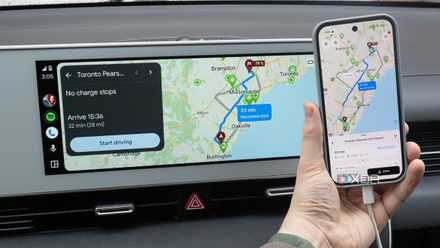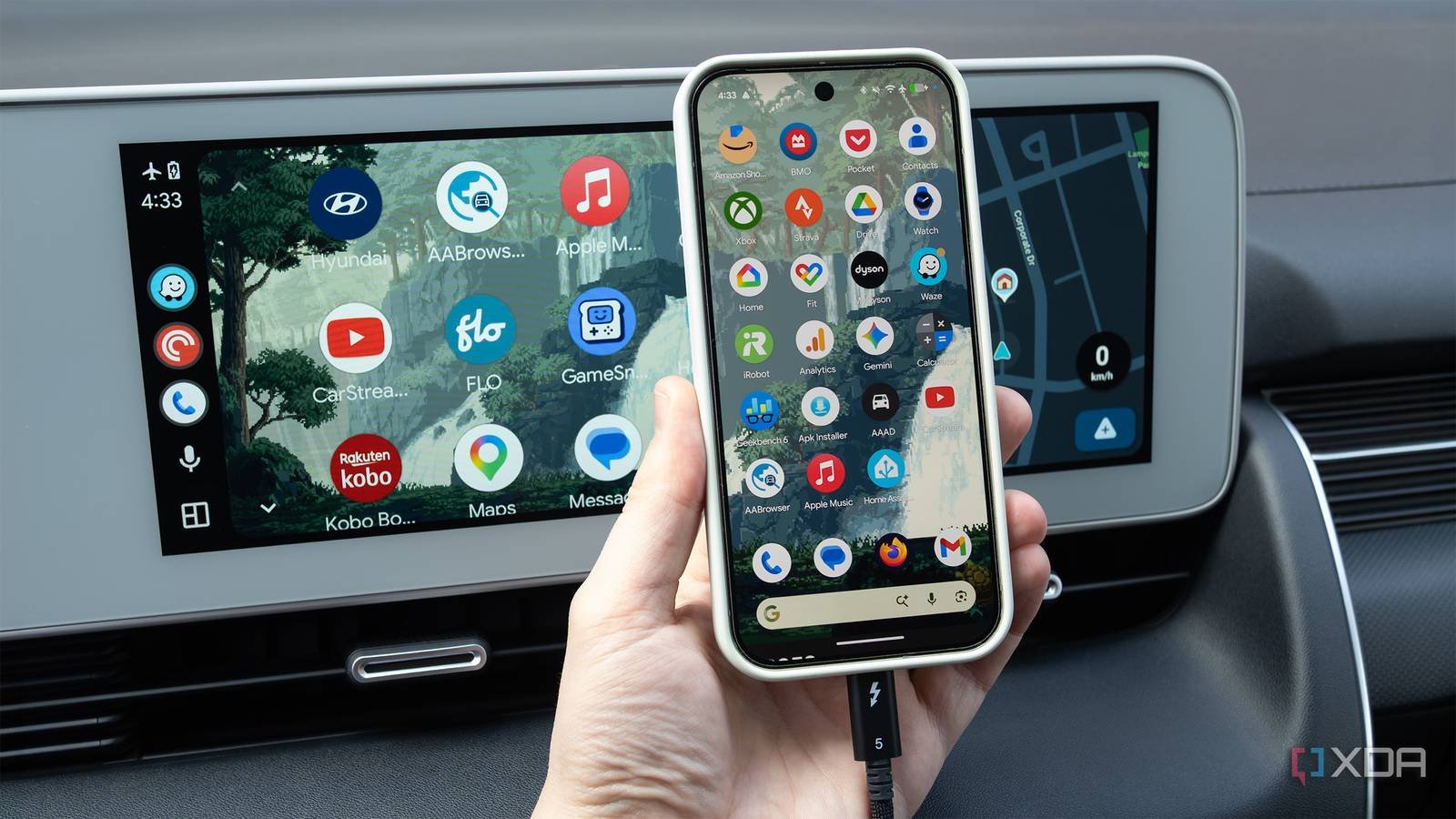
Some people may not realize it, but Android Auto It’s actually just an Android app that streams to your vehicle’s infotainment screen, whether you’re using a wired or wireless connection.
On the wireless side, potential lag issues are difficult to diagnose due to the various variables at play. For example, it could be something as simple as a component in your vehicle interfering with your Bluetooth and Wi-Fi connections. I’ve only used wireless Android Auto a few times, and in my experience it always suffers from a bit of lag, especially if you’re using a third-party wireless dongle; There is simply no way around it.
On the other hand, if you’re using a wired Android Auto connection like me and experiencing lag, it’s a little easier to figure out what could be causing the problem. In my particular case, it came down to the cable I was using.
A simple solution that many people overlook is to make sure Android Auto is up to date. To do this, navigate to the Google Play Store > touch your Profile icon > Manage apps and devices > Available updates > Android Auto > Update.
Some of the Android Auto lag fixes below can also help with wireless Android Auto, including making sure you don’t run too many apps at once to free up RAM. However, most of these solutions focus on improving the responsiveness of wired Android Auto.
Not all USB-C or USB-A cables are created equal
That low-end USB cable you bought at a gas station could be the culprit

In many cases, including mine, Android Auto lag can be caused by that cheap, low-end USB cable you’re using to connect your Android phone to your vehicle. It may be the only cable you have on hand, or maybe your most expensive cable suddenly stopped working and you bought something quick at the gas station or dollar store. Either way, it’s important to remember that not all USB cables are created equal, and in most cases, the more expensive options are far superior.
Android Auto works by generating a continuous video stream while running resource-intensive apps like graphics-intensive map apps and music players, all while constantly displaying your GPS location. All of this means that a lot of data is transferred over the USB cable from your car’s infotainment screen. With this in mind, a USB 2.0 cable, whether USB-A or USB-C, probably won’t be enough, as it maxes out at 480 Mbps. In reality, you probably aren’t hitting that speed and older USB 2.0 cables often have other problems, such as poor shielding and unreliable power delivery, which can contribute to Android Auto lag and disconnections. Many people don’t realize it, but the cables that come in the box of most phones only support USB 2.0, including Google’s Pixel line and even Apple’s iPhone.
Vehicles are full of potential sources of interference, including the engine, ignition system, and other electrical components, making a properly shielded USB cable integral to a responsive Android Auto experience. This is why I always suggest using a USB 3.1 cable that supports 10Gbps to ensure smooth data transfer, which in turn helps make Android Auto more reliable and responsive, even if it is overkill to a certain extent. Lastly, if you’re using a USB-Aa-USB-C dongle like me, make sure it supports at least USB 3.1 pass-through speeds and isn’t the bottleneck in your Android Auto connection setup.
Since I don’t have a USB 3.1 cable available, I’ve been using an extra Thunderbolt 5 cable for Android Auto that I had left over from a recent project (supports up to 80Gbps), along with a USB-AaC adapter that supports 10Gbps data transfer. This is definitely a much higher data transfer speed than you need for Android Auto, but it’s a high-quality shielded cable and the fastest, most protected option I have available right now.
Make sure your Android device is updated
Also clear your cache
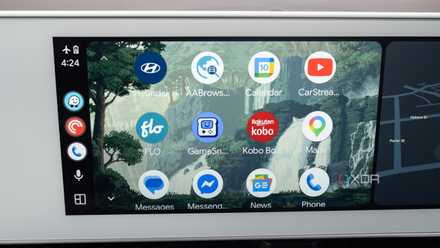
In addition to updating Android Auto, make sure your Android device is running the latest version of the operating system and has the latest security patches installed. Google frequently releases stability fixes, especially with its notable monthly Android feature drops, and you want to make sure you have them running on your device.
On top of that, clearing your phone’s Android Auto app and Google Play Services cache is always a good idea if you’re experiencing lag, as it gives both utilities a clean start. To do this in me Pixel 10 ProI’m going to Settings > Apps > Android Auto > Clear cache. You can also force Android Auto to stop to resolve any potential issues. To clear the cache for Google Play services, go to Settings > Apps > Google Play Services > Clear cache. Also, I always restart my phone after doing this, just in case – the classic “did you turn it off and on again?” solution. It’s still a solid option.
Close all applications that you do not need to open
Make sure battery saver mode is not accidentally activated

If your phone feels slow, you can’t expect Android Auto to run smoothly as it works directly with your phone. In many cases, when I find that Android Auto is not as responsive as I would like, it is because I have several games and other resource-intensive apps running in the background on my phone. I just needed to free up enough RAM on my phone for Android Auto to run smoothly, especially when running Waze, Spotify, PocketCasts, ChargePoint, and more through Google’s infotainment system.
Also, if your Android device lags when connecting to your vehicle, make sure Battery Saver Mode is disabled. Android power management restricts background activity to extend battery life. You can suspend services that you consider non-essential, but you must keep them running in the background for Android Auto to run smoothly. On my Android phones, you can make sure this feature is disabled by navigating to Settings > Battery > and turning off Battery saving mode. It’s worth noting that Android phone manufacturers have different names for this feature. For example, with Google’s Pixel devices, it’s called Battery Saver, while Samsung calls it Power Saving Mode.