
It’s no secret that I love my Steam Deck and one of the things that makes it better is the plugins provided by Decky Loader. It’s even better on more powerful hardware. like the ROG Ally X if you install SteamOSbecause it gives you more computing power to run your games, plus the boost of lower Linux resource usage..
But let’s go back to the Steam Deck for a moment, because it doesn’t support one of the things that the most powerful gaming handhelds do: frame generation. It’s a shame, because sometimes you could really benefit from 2x, 3x, or 4x frame rates, allowing you to run more graphics-intensive games at smoother frame rates or lighter games at much higher frame rates.
Or at least you couldn’t do it. Thanks to an application called Lossless scaling and a plugin for Decky Loader that converts Windows DX11 calls to Vulkan, you can use framegen on Steam Deck. I must warn that it’s still a work in progress, with technical glitches, limited game support, and a still slightly annoying installation process, but it’s a big step forward from how things used to be.
Wait… lossless scaling works on Steam Deck?
Yes, but Proton is not the solution here.

Lossless Scaling has worked on Linux since early 2025, when an open source developer released lsfg-vk, which translates DirectX 11 calls to Vulkan with DXVK. That’s also the core component of Proton, so it gives you half the Linux support you need. The other half was rewriting the shading process in DX11, so it could also be converted.
The first step to translate D3D11 to Vulkan is to not translate D3D11 to Vulkan. Instead, it’s translating D3D11 to D3D11 and then to Vulkan.
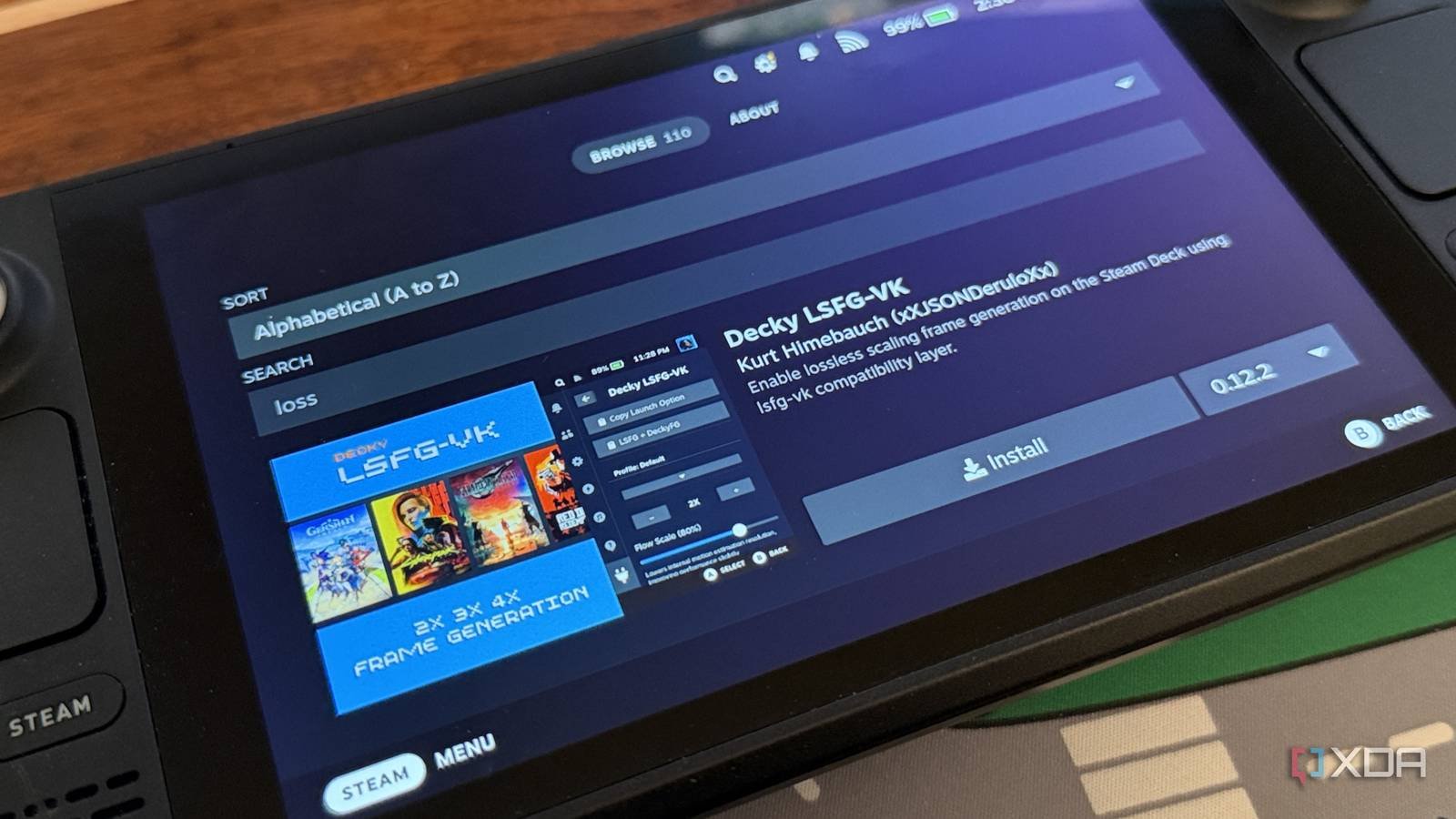
The end result is a chain of conversions that allows Lossless Scaling to work on Linux. And yes, that includes the Steam Deck, although the installation and operation process I was quite involved. But not anymore, as there is a plugin for Decky Loader that gives you handy GUI controls for the variables you’ll need to get up and running.
You will need a plugin plus the main program.
You don’t get anything for free, not even fake frames, and you’ll need to purchase the Lossless Scaling app on Steam to get started. Decky Loader and the Decky LSFG-VK plugin are free and don’t take much time to set up. Decky Loader can be the tricky part as you need to match the version to the Stable either Beta SteamOS branch, and it tends to break when SteamOS receives an update, making you go back to desktop mode to reinstall Decky and get back to where you were.
Decky plugin takes all the hassle out of setting up LSFG-VK
You just need to add a small command to your games launch command.
Installing Plugins in Decky Loader It’s a simple process of a few taps, but you’ll need to install Lossless Scaling first. I didn’t read the instructions the first time, which is why there’s an angry red reminder in the screenshots above, but after a quick install, it turned green.
Then you touch the Install lsfg-v to configure the lsfg-vk Vulkan layer that handles translations. This stage used to be annoying to do manually, as it required typing where the dll file for Lossless Scaling was installed, along with a few other things that are harder to do in Steam Deck.
To finish, you configure the main configuration settings from the Decky plugin GUI, so you no longer have to type any startup commands.
- FPS multiplier: Choose between 2x, 3x or 4x frame generation
- Flow scale: Adjusts the quality of motion estimation (lower = better performance, higher = better quality)
- performance mode: Uses a lighter rendering model, recommended for most games.
- HDR mode: Enable for games that support HDR output
Once the plugin is installed and configured, and the Lossless Scaling and lsfg-vk reminders are displayed in green, all you need to do is add a short command to the startup options of each game you want to use. Anyway, the Steam Deck uses Vulkan for gaming by default, so you shouldn’t need to modify much else, assuming the game supports it.
Using Lossless Scaling is now easy

Assuming your game supports it, it’s pretty easy to run it with frame generation. you add ~/lsfg %command% to the launch options of each game you want to use, so you don’t have to do anything other than run the game in the future. There is a useful Copy start option in the plugin to copy the command, so you can easily paste it with the Steam Deck keyboard and then run your game.
The only other thing you can change is the game settings, you’ll want to Full screen in window, Otherwise, the Lossless Scaling program will not be able to connect to the game and give you the expected fps increase.

It’s still a work in progress
Not all games will work (and Decky can be glitchy too)

I’ve been testing several games and there are questions about which ones will work. Deep Rock Galactic: Survivor I actually lost frames with this, as the game would regularly run at 70-80fps without Lossless Scaling enabled, and drop to 58-60fps with it enabled. I know it was successfully connecting to the game as it was flashing while loading, so I’m not sure what was going on.
Similarly, Elden Ring is a game we managed to run on a Linux desktop using the non-Decky version of the tool, and I couldn’t notice any change in frame rate while running through The Lands Between.
There is a real long list of features and settings trying to get Lossless Scaling to work with individual games, and some of it will be trial and error. I’ve had it working on Linux, so I know it’s possible, but tweaking it for the Steam Deck will take more time.
Decky Loader is a lot of nonsense, but Lossless Scaling is not
While many of the Decky Loader addons involve changing the SteamOS UI, Lossless Scaling actually provides in-game benefits. Or so it promises, if you can figure out which games work. It’s still early days and, like everything related to Linux gaming, it may need more work to make it a smoother experience. Until then, there’s nothing stopping you from trying out your favorite Steam games to see if you get a nice framerate boost.

- Dimensions
-
11.7 x 4.6 x 1.9 inches (298mm x 117mm x 49mm)
- Weight
-
1.41 pounds (640 grams)



