
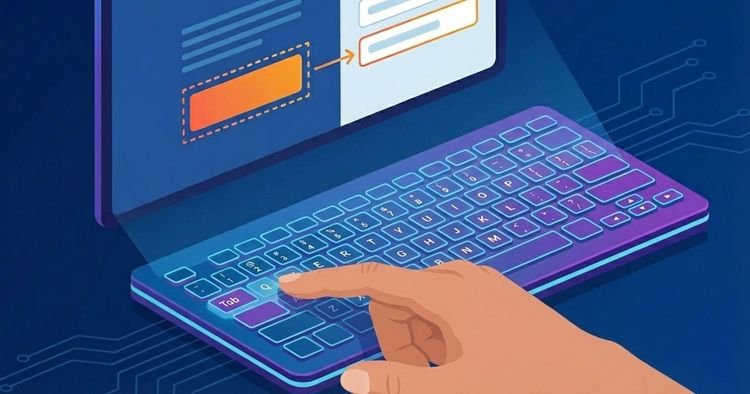
Manually testing a website is a critical step in ensuring that screen reader users can correctly access and understand your content. While automated tools can help identify certain accessibility issues, they can’t fully replicate the actual experience of browsing a site without a mouse.
Keyboard-based testing provides a simple and effective way to simulate how many users interact with assistive technologies. There are five fundamental commands that designers and developers must know to move around the website using only the keyboard.
By learning a small set of fundamental keyboard commands, developers and designers can gain valuable insights into how their websites perform for screen reader users and identify barriers that would otherwise go unnoticed.
The Tab key
By pressing the Tab key, the user can move forward and focus on the interactive elements of the page. Interactive elements are links, buttons, text entry fields, and checkboxes. When the user presses the tab key, the browser must indicate where the user is currently focused, often through a colored outline or highlight. This focus indicator is vital for low vision users who use screen readers to supplement what they see.
Developers can and should audit accessibility issues by navigating the page using the tab key. First, developers need to validate that pressing the tab takes them to the next interactive element on the page.
Secondly, developers should ensure that there is a focus indicator around the element. Third, developers should ensure that the order of tabs descends the page in a logical order. These are basic accessibility tests that developers must complete and correct.
Shift + Tab
While the Tab key moves the user forward, Shift + Tab will move them back. Similar to the behavior of the Tab key, Shift + Tab focuses on interactive elements on the page, but moves back. We must ensure that Shift + Tab allows us to go back in a logical order. There are many reasons to use Shift + Tab.
For example, we move too quickly to the next interactive element and want to go back to the previous one. When filling out a form, we may make a typo and have to go back. When performing accessibility testing, developers should ensure that Shift + Tab works as intended.
Get into
The Enter key is the way the user activates interactive elements. While browsing the page, if the user wants to click on a link that is focused on, they should be able to press the Enter key to activate it. Similarly, when filling out a form, the user can click Enter to submit the form when we are ready.
When manually testing accessibility, it is important to check that the Enter key is completing the action we are focusing on. For example, if we are focused on a link, clicking the link should take us to the next page. If pressing Enter does not complete this action, there is a problem.
space bar
The Enter key is usually “go somewhere.” The space bar on the other hand is to change something on the current screen we are on. For example, we can click the space bar when we are above a check box or radio button.
Pressing the space bar will add a check to the checkbox or remove it. While we’re on a checkbox or radio button, it’s important to make sure these elements announce their “current status” to screen reader users, as if they were on or off. This will allow the screen reader user to make the decision whether to press the space bar or not.
Arrow keys
Tab and Shift + tab move focus to interactive elements and skip everything in between. If we want to read the page, we can click the up or down arrow keys. The arrow keys will move focus line by line, allowing screen reader users to read the content. By using the up and down arrow keys, users can move sequentially through paragraphs, headings, and other content elements.
This navigation method also allows screen readers to announce alt text for images, providing context for visual content that would otherwise be inaccessible. Ensuring all meaningful images include descriptive alt text is a key part of accessibility, and arrow key navigation is one of the main ways users find this information.
Conclusion
Together, these five keyboard commands (Tab, Shift + Tab, Enter, Spacebar, and Arrow keys) form the basis of manual accessibility testing. They allow developers to experience their websites from a different perspective and identify problems that may not be immediately obvious through visual inspection alone.
By constantly testing these keys, teams can create more inclusive and user-friendly digital experiences. Accessibility is not just a technical requirement; It is a commitment to ensure that all users, regardless of ability, can interact and benefit from the web.
Source link



