Physical Address
304 North Cardinal St.
Dorchester Center, MA 02124
Physical Address
304 North Cardinal St.
Dorchester Center, MA 02124


I once entered the wrong branch in a client’s project. Not the staging branch, the live one. The solution took about four minutes, but the conversation that followed took longer. That was the last time I implemented something manually.
I moved to GitLab CI/CD and it’s been solid. You write a configuration file, commit it, and from then on every commit triggers a pipeline that tests your code, builds it, and commits it. No dragging folders, no SSH sessions, no waiting to remember the correct build command.
This article explains how to set up a complete process for a React application. We’ll go from a blank project to something that automatically deploys to GitLab Pages every time you log into main. I’ll also point out things that took me by surprise the first time, because the documentation doesn’t always mention them.
Continuous integration means your tests run automatically on every push. You get a pass or fail before anyone merges anything. Continuous deployment means that a passing build goes directly to production without a human in the middle.
For frontend work, the practical advantage is that the production build is always built the same way, in the same environment and from the same source. It eliminates the whole category of errors that come from someone building locally with slightly different node versions, slightly different env files, slightly different everything.
The demo is a React app that shows deployment information, what environment it is in, when it was created, whether it came from CI or someone’s laptop. Simple UI, but it gives us real environment variables to inject through the pipeline, making it a realistic example.
Project design:
gitlab-cicd-demo/
├── .gitlab-ci.yml
├── public/
│   └── index.html
├── src/
│   ├── App.js
│   ├── App.test.js
│   ├── setupTests.js
│   └── index.js
└── package.json
GitLab looks for .gitlab-ci.yml in the root on every push. That file controls everything.
Get started with a new CRA project:
npx create-react-app gitlab-cicd-demo
cd gitlab-cicd-demo
React removes any env variables that don’t start with REACT_APP_, so in App.js we define two with alternatives for local development:
const buildTime = process.env.REACT_APP_BUILD_TIME || 'Local Development';
const gitlabCi  = process.env.REACT_APP_GITLAB_CI  || 'false';
Run it locally and you’ll get the backup strings. Run it through the pipeline and GitLab will exchange the actual values.
Create src/setupTests.js with just this:
import '@testing-library/jest-dom';The CRA collects it automatically. No configuration needed anywhere else. This is the file that makes toBeInTheDocument() and similar matchers available. Don’t add a joke block to package.json by trying to reference it. The CRA is strict about which Jest options it accepts and will refuse to start if it sees something it doesn’t recognize, even if the key looks legitimate.
Quick warning if your titles have emojis. I had a header that said ‘📋 Deployment Information’ and getByText(‘Deployment Information’) kept failing. It took me a while to realize that the emoji was part of the text node, so the full string was ‘📋Implementation information’, not what I was looking for.
The solution is getByRole() with a text content check:
const headings = screen.getAllByRole('heading', { level: 2 });
const match = headings.find(h => h.textContent.includes('Deployment Info'));
That way, it doesn’t matter what else is in the title.
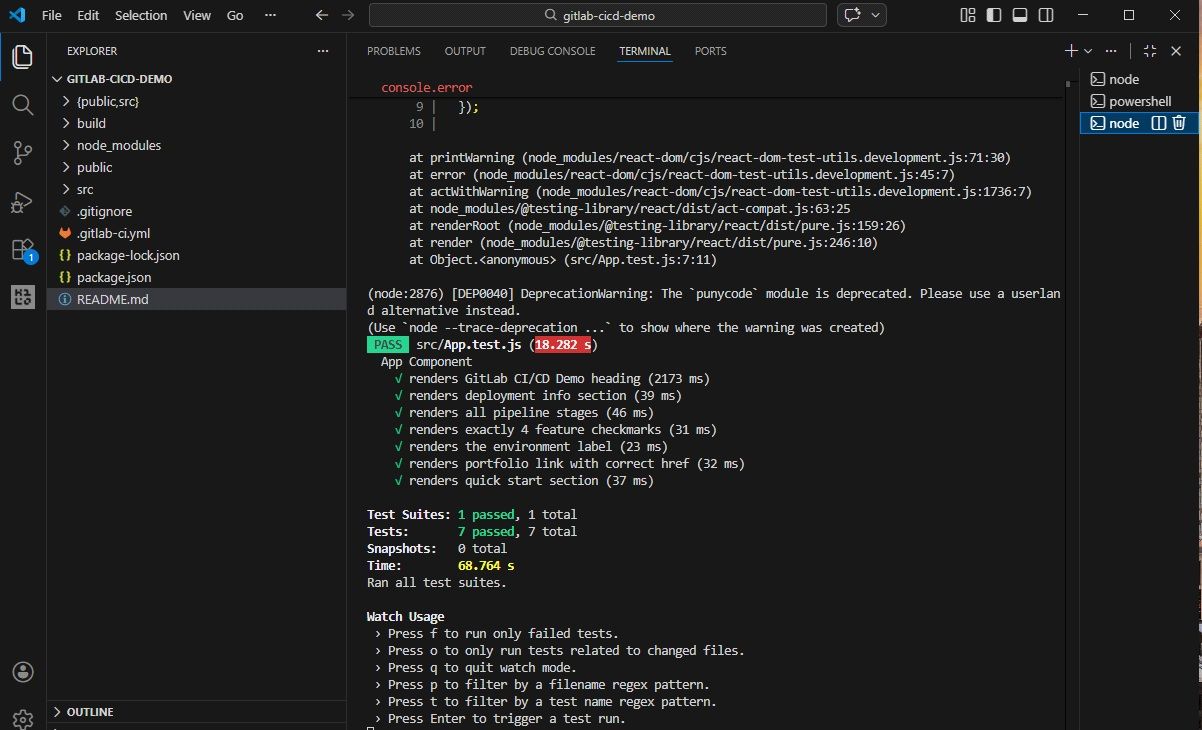
.gitlab-ci.yml goes to the root of the project. GitLab reads it on every click. Here’s the full breakdown.
The stages are executed in order and stopped in case of failure. A failed test means the build never runs. A broken build means nothing is implemented. That’s the behavior you want.
stages:
  - install
  - test
  - build
- deployWithout caching, each pipeline execution downloads node_modules from scratch. On my first pipeline I didn’t bother and ended up with installs that took four minutes per run. Once you have a few people entering code regularly, that becomes a real problem.
Using package-lock.json as a cache key means that it is only rebuilt when the dependencies actually change:
cache:
  key:
    files:
      - package-lock.json
  paths:
    - node_modules/
- .npm/Use npm ci, not npm install. At the local level it hardly matters. In the process, npm install may silently resolve packages differently or update the lock file without telling you. npm ci just reads what’s there and installs it word for word. If something doesn’t line up, it fails miserably, which is what you want.
install:
  stage: install
  script:
    - npm ci --cache .npm --prefer-offline
  artifacts:
    paths:
      - node_modules/
    expire_in: 1 hour
Without the artifact block, the test job would start with an empty node_modules and fail immediately.
The –ci flag prevents Jest from entering watchdog mode and waiting. It runs once, reports and exits. The needs line makes sure that node_modules is already there before trying.
test:
  stage: test
  needs: (install)
  script:
    - npm run test:ci
  coverage: '/All files(^|)*\|(^|)*\s+((\d\.)+)/'
  artifacts:
    when: always
    reports:
      coverage_report:
        coverage_format: cobertura
        path: coverage/cobertura-coverage.xml
GitLab reads the coverage percentage of the Jest output using that regular expression and displays it on the pipeline page. In merger requests, it appears online, so reviewers can immediately see if a PR has lost coverage.
Every GitLab pipeline run comes with a bunch of built-in variables. We take two and pass them to the build:
build:
  stage: build
  needs: (test)
  variables:
    REACT_APP_BUILD_TIME: "$CI_PIPELINE_CREATED_AT"
    REACT_APP_GITLAB_CI: "true"
    GENERATE_SOURCEMAP: "false"
  script:
    - npm run build
  artifacts:
    paths:
      - build/
    expire_in: 1 week
  rules:
    - if: '$CI_COMMIT_BRANCH == "main"'
    - if: '$CI_PIPELINE_SOURCE == "merge_request_event"'
GENERATE_SOURCEMAP is false because there is no good reason to send your source code to users.
This stage has two requirements that are not obvious. The output folder should be called public and the job itself should be called pages. Not “implement”. Not “release”. Pages. I called mine “implementation” the first time and spent an hour confused about why the pipeline was green but nothing was showing up on the site. GitLab runs the job either way, it just silently skips the actual deployment if the name is incorrect.
pages:
  stage: deploy
  needs: (build)
  script:
    - mkdir -p public
    - cp -r build/* public/
  artifacts:
    paths:
      - public
  environment:
    name: production
    url: https://$CI_PROJECT_NAMESPACE.gitlab.io/$CI_PROJECT_NAME
  rules:
    - if: '$CI_COMMIT_BRANCH == "main"'
Other branches run tests and compile fine. They just don’t trigger a deployment. You still get feedback; nothing is activated until it reaches main.
Make a blank public project on gitlab.com. Public is important because private projects need a paid plan for Pages. Then press:
git remote add origin https://gitlab.com/YOUR_USERNAME/gitlab-cicd-demo.git
git add .
git commit -m "Initial commit"
git push -u origin main
Go to CI/CD > Pipelines and watch it run. When the implementation work is complete, your site will be in https://github.com/BboyGT/gitlab-cicd-demo. The app will display the actual timestamp of the pipeline and confirm that it arrived via CI.
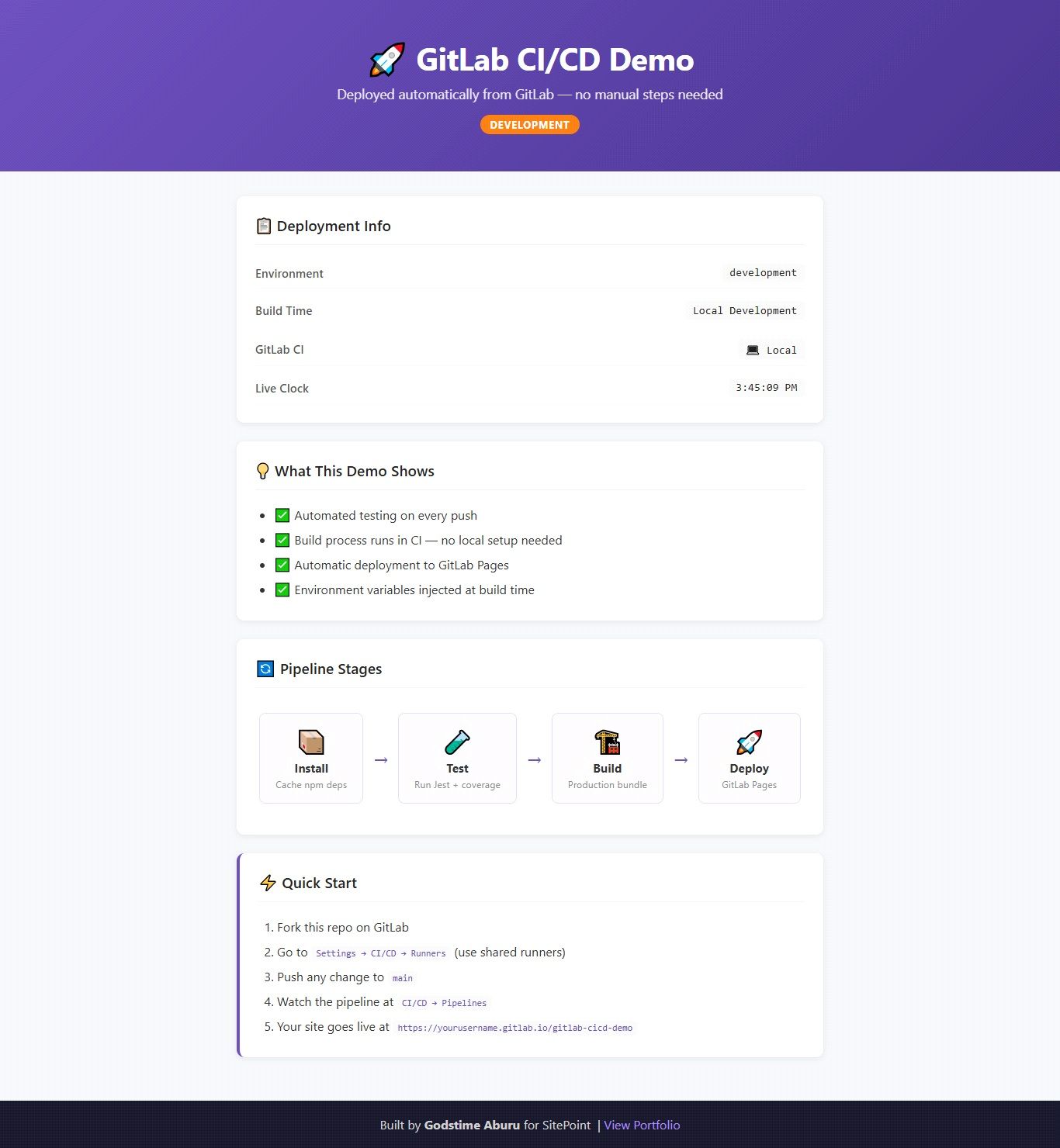
Once this works, it’s worth adding a few things:
Setting this up takes an hour or two the first time. After that, it runs mostly in the background and you stop thinking about it, which is the point. Deployments get boring and boring is good.
If something in your pipeline configuration isn’t working and you can’t figure out why, the job logs in GitLab are usually pretty straightforward about what went wrong. That and checking if your deployment job is actually named pages will solve most of the problems you run into in the beginning.
The tool that I just explained in its entirety is open source. Can clone GitHub repository and try it for yourself.



