
when you install Proxmox For the first time, you will find that the virtualization platform has the enterprise repository enabled by default. Unless you have a premium license, attempting to update your Proxmox VE host will result in errors. For veterans like yours truly, who have built (and torn down) multiple Proxmox teams, manually deleting the enterprise repository and adding its community equivalent is just another post-installation task.
But if you’re a beginner, you might end up scratching your head when trying to update your Proxmox environment. As much as I like the virtualization platform, I have to admit that its default configuration leaves a lot to be desired, and that includes both the virtual guest options and certain settings for the host machine.

Leaving display settings at their default makes your virtual machines less responsive
I use the SPICE option for most virtual machines.

Let’s say you are trying to create a development virtual machine that is equipped with all the coding tools you need for daily tasks. You’ve probably added a bunch of processor cores and system memory to avoid performance issues while you work on your projects. Unfortunately, if you are using the basic console in the web UI to access the virtual machine, you are bound to encounter a slightly lagging mouse. Trying to change the resolution beyond the 1080p mark can cause display glitches. It might just be me, but I’ve also had virtual machines with higher screen resolutions refuse to start the desktop environment after restarting them if I leave them at default settings.
Well, the solution for every problem lies in the display option. You’ll want to modify the display settings in the Hardware (or graphics card, as it’s called in the VM creation wizard) tab of your virtual machine to something other than Default. I’ve had great luck with SPICE as it not only makes the cursor more responsive, but also allows me to select beyond the 1440p resolution without the desktop environment error. Better yet, you don’t even need to configure the SPICE app to use this feature; simply use the console tab in the Summary section instead of the button at the top of the Proxmox page the next time you need to access your virtual machine from the PVE web UI.
Host CPU type is ideal for single node configurations
Unless you have compatibility issues, you might want to get rid of x86-64-v2-AES

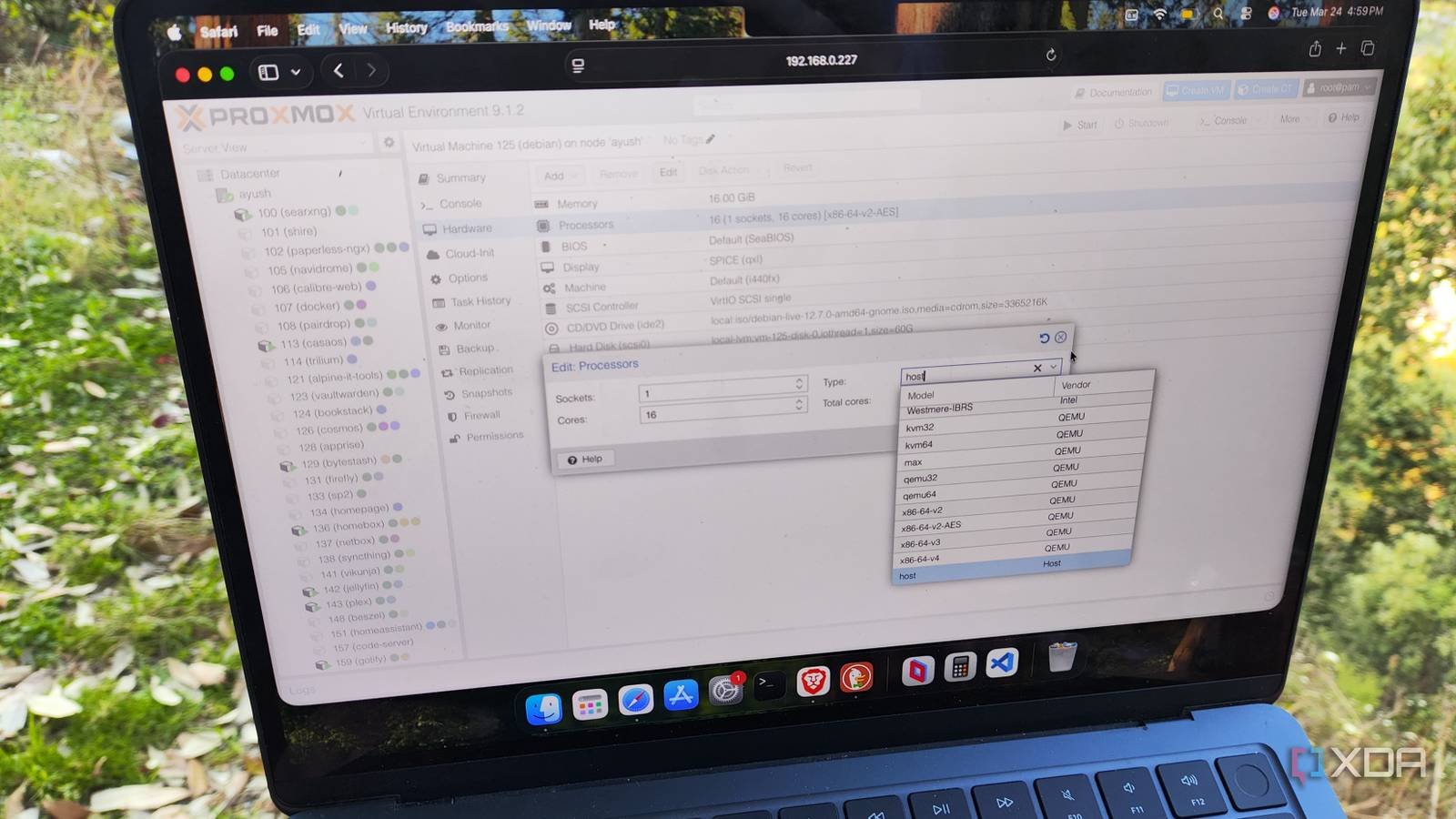
If you are looking for another obscure tweak that can improve your performance, you may want to modify the CPU type option for your virtual guest. By default, Proxmox assigns x86-64-v2-AES CPU to its virtual machines and, truth be told, it has some advantages. Since it is a generic processor, it provides a stable experience on virtually any operating system you want to run inside a virtual machine. But the real advantage of x86-64-v2-AES is that migrating your virtual machine across cluster nodes with completely different specifications will not cause compatibility issues if you have this type of CPU equipped.
But for people who want maximum performance in their modern Linux or Windows virtual machines, switching to the host CPU might be the best option. With x86-64-v2-AES, you pass your CPU through an emulation layer, while the host type directly exposes the underlying architecture to your VM. Additionally, you can also use the full range of extensions and instruction sets supported by the host processor in your development virtual machine. Modifying this setting is just as simple, as you can find it in the Processors section of your virtual machine’s Hardware tab.
Modifying the CPU Governor Profile Can Reduce Your Energy Bills
The slight performance trade-off in burst operations is worth it

This may seem counterintuitive after all the responsiveness tweaks I’ve mentioned so far, but it’s a good idea to change the CPU throttle profile from performance to power saving. If you haven’t heard of it, a CPU governor profile is responsible for controlling processor speeds in specific workloads. Proxmox sets performance as the default CPU regulator, providing a snappy experience in burst tasks at the cost of increasing your server’s power consumption even when it is not active.
Meanwhile, the power saving profile slows down your CPU during idle state, allowing you to reduce the power diverted by your server. The best part? The performance impact of changing the CPU throttle is fairly minimal for intensive tasks, as your processor can still reach high frequencies. It’s just that you’ll experience a slight delay (a few seconds, at most) during burst tasks, where your server runs for a couple of minutes, only to go back to sleep once the workload is complete. But if you have an older system, especially one with enterprise-grade hardware, this setup can be a game-changer for reducing your passive power consumption. You can trust him PVE CPU Scaler Script from the Proxmox VE Helper Scripts repository or run eco energy saving | t-shirt /sys/devices/system/cpu/cpu*/cpufreq/scaling_governor within your server’s Shell tab to switch to the power saving profile.

Don’t forget about third party (trusted) repositories too
While we are on this topic, Proxmox has one of the most talented communities among all other virtualization platforms. So much so that you will find a lot of interesting repositories created by developers for their Proxmox environment. Now, I wouldn’t recommend blindly installing all the scripts you see on GitHub. But cattle, Proxmox VE Helperand other reliable sources have some interesting templates and scripts that can make your journey to Proxmox much easier. And many of these LXC templates are easier to implement than the TurnKey templates available in a basic Proxmox setup.



