
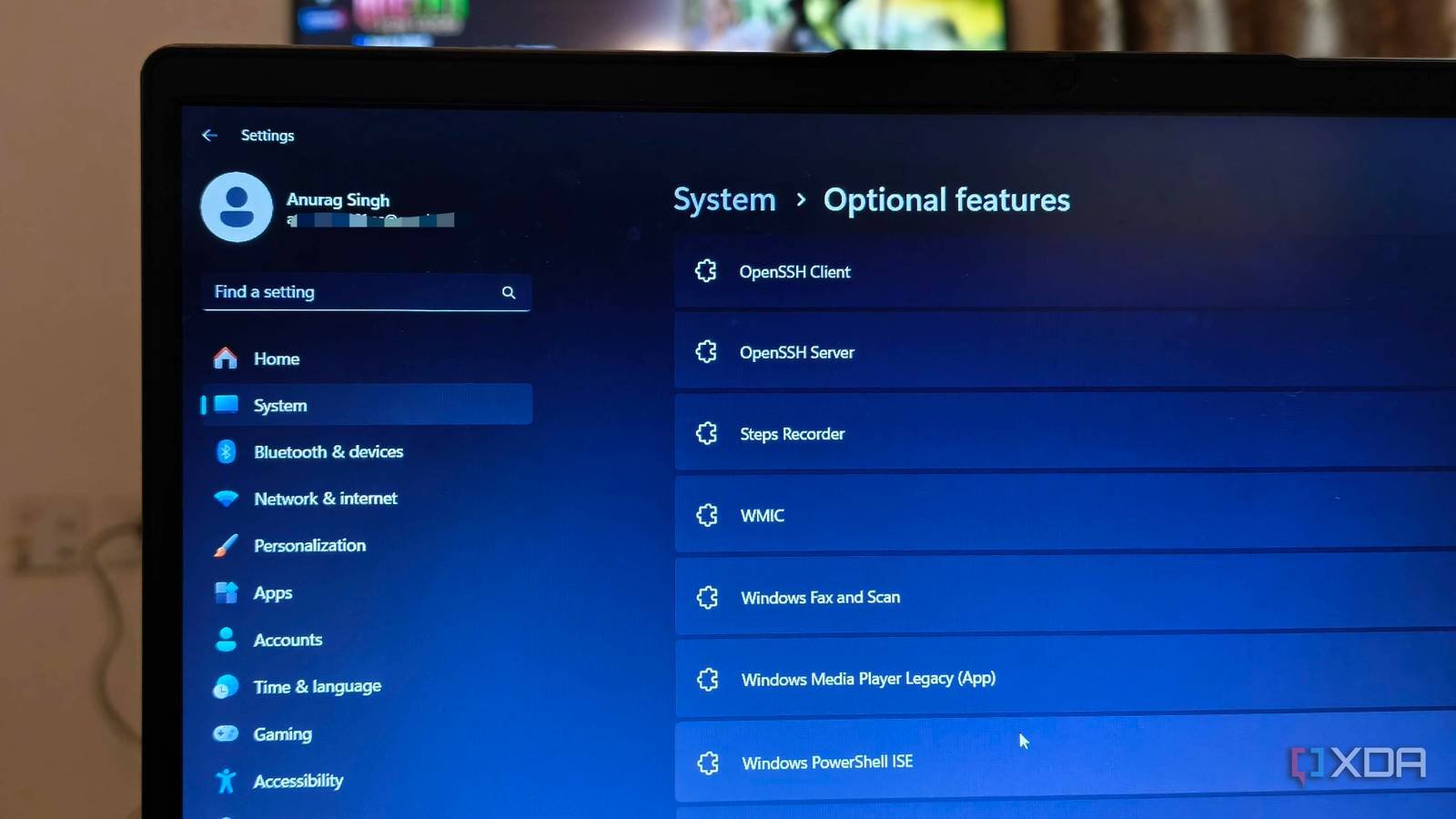
Windows has spent years trying to catch up to workflows that Linux users took for granted. Things like package managers, proper terminals, and scripting have slowly improved, but one feature still flies under the radar more than it should. Modern versions of Windows come with a built-in OpenSSH server. It’s not something you have to install separately from a random GitHub page. It is part of the operating system itself. Despite that, most people still use legacy or add-on tools. remote access software.
The amazing thing is that Windows can now behave like a Linux machine when it comes to remote administration. You get access to the encrypted shell, file transfers, port forwarding, and key-based authentication, all using the same tools you would use on any Unix system. Once you start using it, it’s hard to justify going back to previous workflows.

Windows finally has a proper remote access layer
And it works exactly as you expect.
The biggest change with OpenSSH on Windows is not only that it exists, but that it works exactly as expected. Once enabled, your Windows machine can accept SSH connections like a Linux server. You can connect using a simple command like ssh user@host and immediately gain access to PowerShell or the command prompt. From there, you can run scripts, manage services, or inspect the system without even opening a graphical session.
Traditional Windows remote management has always relied heavily on Remote Desktop. While RDP works well for full desktop access, it is not designed for quick interactions or automation. You need to log in, wait for the desktop to load, and then navigate to what you need. SSH eliminates all that overhead. You connect instantly, execute what you need, and disconnect.
The feature itself is no longer new. Microsoft added OpenSSH as an optional component starting with Windows 10, and the latest versions of Windows 11 and Windows Server already include it out of the box. In most cases, you just need to enable the service and start it.
Once it’s running, you’ll also get access to the full OpenSSH toolset. That includes the ssh client, sshd server, key management utilities, and file transfer tools like scp and sftp. They behave the same as on Linux, meaning you can reuse existing commands, scripts, and workflows without modification.
OpenSSH is more useful than you think
Now you can manage Windows and Linux machines in the same way

OpenSSH really starts to make sense once you look at how it fits into most workflows. If you manage more than one system, chances are you’re already using SSH somewhere. Linux servers, cloud instances, and even network devices depend on it. Before this change, Windows was the odd one out and required separate tools or protocols.
With OpenSSH built in, you can manage Windows and Linux machines using the same approach. A script that connects to a remote server via SSH can now point to a Windows machine with minimal changes. For example, you can restart services, edit files, or run maintenance scripts remotely without requiring a graphical session. Instead of logging in through Remote Desktop just to perform a quick task, you can accomplish it with a few commands.
File transfers also become easier. Instead of relying on shared folders, FTP servers, or manual uploads, you can use scp or sftp to move files securely. It is a single, encrypted channel that works the same on all platforms. There is also support for port forwarding and tunneling, which opens up more advanced use cases. You can securely access internal services, forward traffic through a remote machine, or create temporary tunnels without exposing anything publicly.
Part of the reason this feature remains underrated is that we Windows users are used to solving problems differently. Tools like PuttyWinSCP and Remote Desktop have been around for years, so they became the default. Even now, many setups still rely on them simply because that’s what people are familiar with. The SSH client built into Windows is already capable enough for most use cases, and from a security standpoint, it’s on par with popular alternatives. The main difference is how you interact with it. You rely on command line options or configuration files instead of a graphical interface with saved sessions.
Compared to previous Windows-specific solutions, such as WinRM or PowerShell Remoting, SSH is simpler and has broader support. For full GUI access, Microsoft’s Remote Desktop app used to be the default choice, but the company retired the dedicated version of Windows last year in May and replaced it with a new, unified “Windows app.” SSH is no substitute for that experience: you can use SSH for quick tasks, automation, and scripting, and only fall back to RDP when you really need the full desktop environment.




