
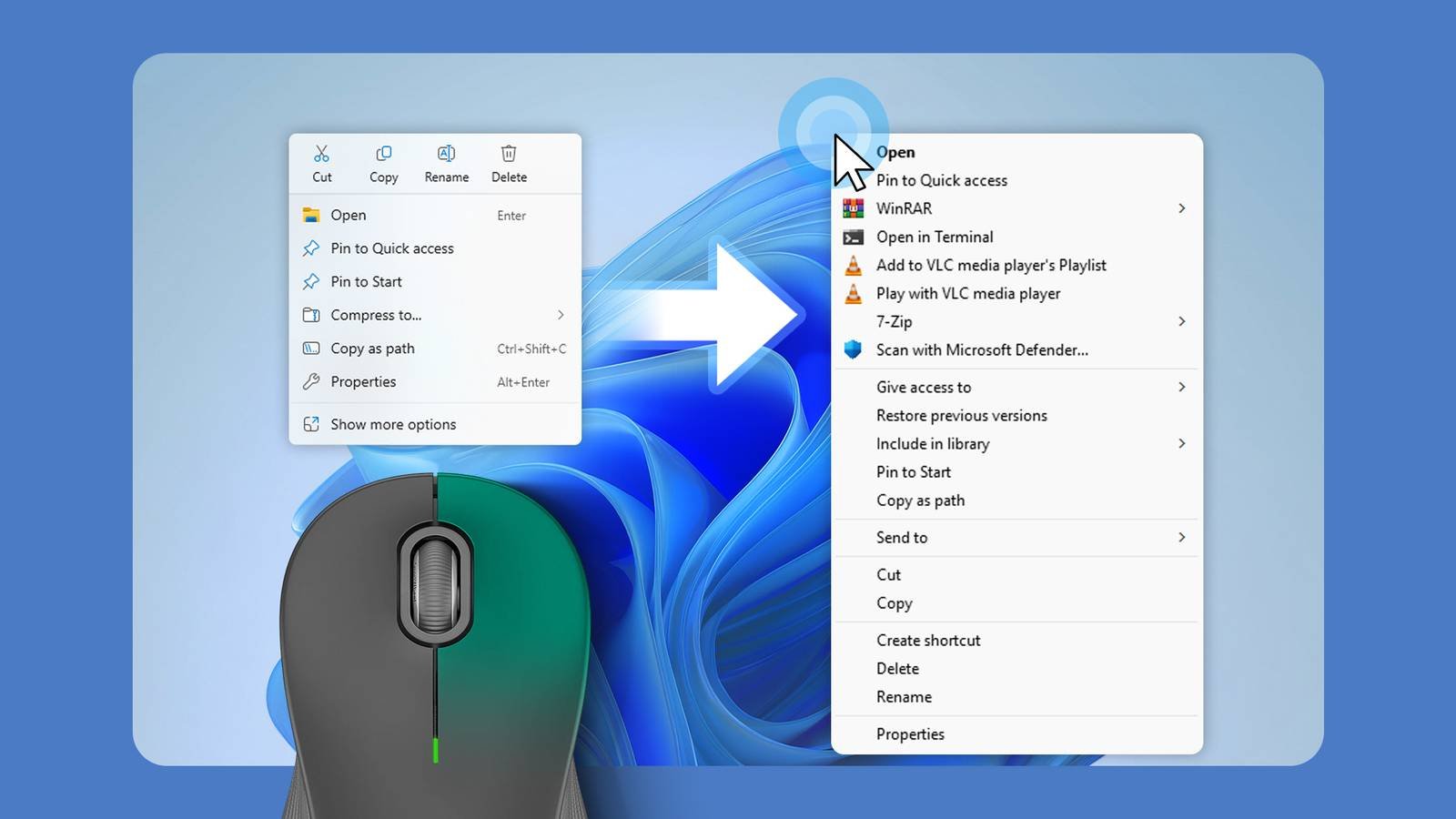
You download a file from the Internet and discover that it is not in the format you need. Your editing programs don’t like it, the thumbnail doesn’t display correctly, and what is a WebP anyway? Thanks to an open source project, you can now instantly convert the most common media files by simply right-clicking on them.
There are so many file formats that I never want
Does anyone want to download a WebP?

If you spend any time collecting files from the Internet, you will quickly run into a situation where you have a large mix of files and, in most cases, they are not in the format you want.
In my experience, WebP tends to be the worst offender. It’s a lightweight image format ideal for websites, but a surprising number of applications can’t use it. You must first convert it to another format, such as PNG or JPG.

I also frequently find myself converting some media formats, such as OGG, to more common media formats, such as MP3. OGG is fine from a technical perspective, but it doesn’t have the Near-universal MP3 compatibility.
When this happens a dozen times a day, or more, when I’m exploring a new project, it gets exhausting quickly.
That’s exactly the problem File Converter solves.
File Converter is an open source project that allows you to convert anything instantly
All you need to do is right click

File converter is an open source project that gives you access to conversion tools in the full right-click context menu; Every time you click on a media file, you’ll see the options available for a media file of that type.

Underneath, File Converter relies on several other open source projects to handle file conversion, including:
What can File Converter convert?
File Converter supports a wide range of files, mainly determined by FFmpeg and ImageMagick.
|
Image |
Video |
Audio |
|---|---|---|
|
JPEG |
MKV |
MP3 |
|
PNG |
MP4 |
CAA |
|
GIF |
WEBM |
WAV |
|
BMP |
OGV |
OGG |
|
AVIF |
AVI |
|
|
WEBP |
GIF |
|
|
ICO |
It also supports some other conversions that you may find useful. For example, you can convert image files to PDF, which can sometimes be useful if you need to upload an image somewhere that doesn’t support typical image file formats.
Installing and using File Converter
Beware of unofficial versions

File Converter is available from one place: the official website. Even GitHub links lead to the official website.
If you see File Converter elsewhere, you should be very careful. I came across one piece of malware that was pretending to be the real file converter.
The legitimate download comes as an MSI file.
Using the file converter
Once File Converter is installed, all you need to do is Shift+right click the relevant file, select File Converter, and then select the new file format you want.
File Converter, by default, will not overwrite your existing file. Instead, it creates a duplicate to ensure you don’t lose anything important.
Beyond converting files, basic manipulation tools are also available. For example, if you have an image file, you can automatically resize it to 75% or 25% of the original resolution. You can also rotate it.
If you have an audio or video file, you can adjust the playback speed or audio pitch.
Customizing File Convert options
The File Converter options are great to have, but I don’t use some of the options at all and wanted to remove them to reduce the amount of clutter in the UI.
The context menu is already very full and cleaning it is surprisingly difficult.
To adjust the options available in File Converter, Shift+right click any image, audio, or video file, then select Set Presets at the bottom of the list.

Once in Settings, you can select a conversion option and then disable that option for specific file types. For example, I will never use the 25% or 75% scaling feature for photos, the 720p scaling option for videos, or the option to adjust the tone of audio files.
So, I went through and disabled those options for each file type by clicking the first option under Input Formats on the right. If you only want to disable them for specific file types, you can do that too.
A convenient program, not a full-fledged editor
File Converter does not replace a full image, video or audio editor. For them, I would recommend Affinity for images, DaVinci Resolve for videoand Audacity for basic audio editing.



