
Everyone seems to like summaries. Spotify popularized them with Wrapped and now dozens of applications have their own version. You may not know that Google Maps knows this too, and it’s great to see your travel history every month.
Google Timeline monthly summaries use the Timeline feature, which keeps a history of all the places you’ve visited with your phone. It can be a useful feature, but there are obviously some privacy concerns that come with it. I’ll show you how to get the monthly summaries and also how to maintain a little privacy.
The timeline doesn’t work like before.
Google made some changes to the location timeline
First, we need to talk about how the Google Maps timeline works today. In 2024, Google revised its location data storage policies. Instead of storing location data in the cloud, it moved backups to on-device storage. This meant you could no longer see the timeline of your location on the web or on any device where it hadn’t occurred.
That trade-off in terms of convenience is good for privacy, but it also changed the way monthly summaries work. Before the change, Google sent monthly and yearly summaries in an email with nice images and easy-to-read highlights. Now those emails are no longer sent, but you can still receive a notification from the Google Maps app on your phone. It’s not as cool as emails, but it’s something.
How to get Google Maps timeline updates
Make sure these settings are enabled
There are a few things you need to make sure are enabled if you want to receive summary notifications from Google Maps. Android and iPhone. The most important one is the Timeline feature itself. We can activate it by going to Google Maps, tapping your profile icon and selecting “Your Timeline.”
If the Timeline is not enabled, you will see a button floating above the map that says “Timeline is disabled.” Tap it to start. You will access the Google account settings and the Timeline section. Tap the “Activate” button, read the information page, and tap “Activate” once more to confirm. Don’t select “Got it” yet.
After you enable the timeline, you’ll see a related control called “Configure automatic timeline deletion.” This is an important thing to do if you want to maintain some level of privacy. You have the option to automatically delete your timeline after 3 months, 18 months, or 36 months. I have mine set at 18 months, but any option is better than never.
Once this is clarified, we must ensure that you actually receive the notification. To do that, go back to the Maps home screen and tap your profile icon again. This time, go to Settings > Notifications > Location & profile. The one to check is “Google Maps Timeline”. Turn this option on or set it to “App only” if you only want to see the notification when you open the app.
Now, when the time comes, the notification will be titled “Your Schedule (Month): See new travel and visit ideas.” When you open the notification, you will be taken to the “Statistics” tab on the timeline with the last month selected. It is possible to visit this screen manually by going to the profile icon > Your timeline > Statistics > tap the month drop-down menu.

This is what you really get
it’s a lot
With all that setup and enablement done, let’s talk about what the monthly summary actually includes. The top section is “Travel” and shows how many miles you traveled walking, driving, biking, taking public transportation, and other modes related to your personal life. There is also a bar graph next to each one so you can see how it compares to previous months.
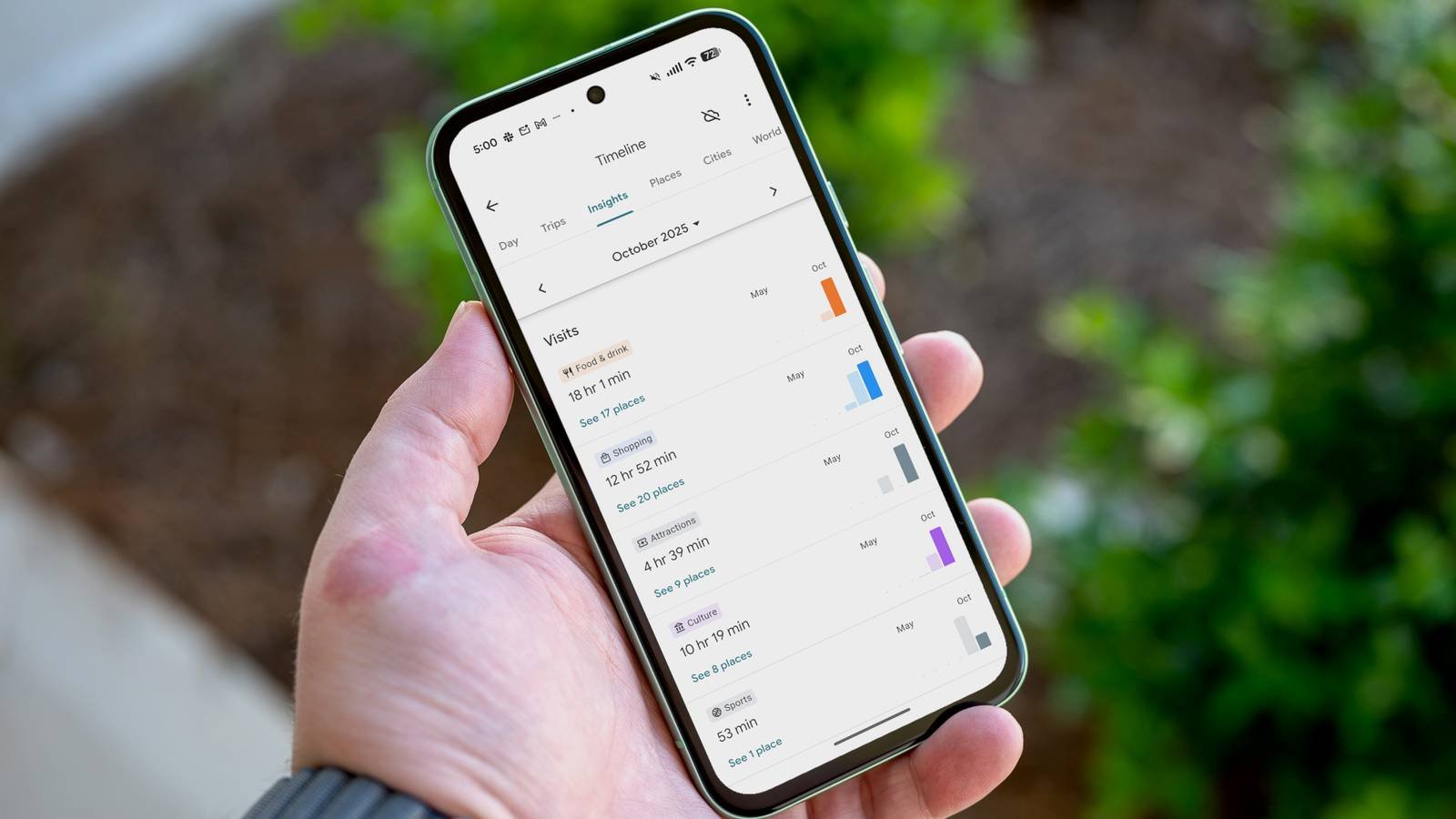
Below is the “Visits” section. This is where Google shows the different types of places you went. There are several categories, including “Food and Drink”, “Shopping”, “Attractions”, “Culture” and more. You can see how much time you spent in each category and tap “View Places” to get a specific list of locations. Like “Travel,” this section also has bar charts to compare to previous months.
Now, if your month was particularly eventful, you may also have a “Highlights” section at the bottom. This usually means you did something more than any of the previous six months. For example, a couple I saw with my own eyes were: “You visited 3 bars in September” and “You visited 15 restaurants in October.”
That’s all! Again, you can view these stats at any time on your own, but the monthly notifications are nice. It’s an easy little way to see how active you’ve been in the world outside your home, and you just have to give up a little privacy to see it (sarcasm).




