

Windows operating system cleaners earned a bad reputation when they tried to act as a one-stop shop. The tools attempted to directly delete unused registry entries, included deceptive marketing tactics that forced you to install other software for monetary gain, and deviated from their primary task. CCleaner is a fantastic example of a tool that was very popular but slowly adopted all the wrong traits mentioned above, combined with security hiccups, making it an unreliable application today.
Even if I ignore the bloatware and aggressive ads, the high price of such tools made Windows 11 users switch to native versions. Disk Cleanup and PC Manager utilities. I recently discovered Fluent Cleaner, an open source cleaning tool that does more than just delete surface files. Let’s discuss why I prefer it over native system tools and skip other paid third-party cleanup tools altogether.
Born of necessity

Fluent Cleaner developer quotes Cleaner as a basis for the GitHub project. Instead of creating a complete replica of the tool, fluid cleaner It adopts modern standards, abandons intentional bloatware packaging, and has a modern interface that matches the design of Windows 11.
The cleaner app uses the WinUI 3 platform and that sets it apart from most third-party tools. I hate using a cleaner app that looks like it hasn’t updated the GUI since 2010. Being based on WinUI 3 means it can adapt to your system’s default theme or even a custom one if you want. But why use it when there are native tools?
I even thought about it, but garbage doesn’t accumulate in one day. Disk Cleanup can remove a good portion of old update files, thumbnail data, Recycle Bin contents, and other leftovers. But even if you do, there are still many things to do. Disk Cleanup ignores browser caches, installer leftovers, application files, and a few more. But Fluent Cleaner also goes deeper into these areas, all thanks to winapp2.ini database.
It is a database that most cleaning applications use to identify unnecessary files that can be safely deleted without risking system stability. Winapp2 is a database that is constantly updated and recently added support for zen browserwhich I personally use and find more convenient than Vanilla Firefox. Fluent Cleaner uses this database to find more files that it can safely delete with each application or operating system update. You don’t need to worry about registry entries because the tools don’t focus on that aspect at all.
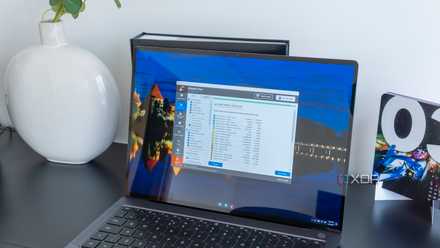
cleaning experience
Much more than system files
As I mentioned above, Fluent Cleaner can perform deep cleaning better than native system tools. I try a lot of apps on my main Windows PC and some virtual machines, and the files gradually accumulate. When deleting apps there are still many items left, and Fluent Cleaner can remove them along with apps, browsers, cache, and more.
I ran the scan with Microsoft PC Manager and Fluent Cleaner, and both reported different sizes of files that were removable. Disk Cleanup and Storage Sense agreed with PC Manager’s claim of 15GB of recoverable space, while Fluent Cleaner claimed 18GB of encroachment. The number jumped to 19 GB when I enabled the Winappx database, which expands the search for AppX files and bloatware.
I can add more databases if I want, but this goes far beyond what the native tools could find. There is also a Winapp3 database, but it is still experimental, which means the developers are still adding to it and might suggest removing files that could affect system stability. I suggest avoiding it until you reach a stable phase.
Fluent Cleaner neatly skips sensitive data like autofill, passwords, browser history, and some app files by default. There is also a terminal section in the app that you can use to scan and delete files related to one or multiple apps. But there is one more hidden feature.
Custom Cleaner Support
Expanding the scope

I was satisfied with the deep cleaning experience, but Fluent Cleaner includes support for adding external scripts. The developer recently made a change to the app that hides custom support until you manually add the scripts from the GitHub repository and then enable it in settings.
Maybe it’s a way to simplify things for an average user who wants to delete unnecessary files and doesn’t require additional features. However, I like the fact that the Chris Titus app and Win11Debloat They are part of the custom script suite.
I need to click the plus icon to reveal the available cleaners and enable the ones I like. I experimented with the ChrisTitus application script, which I started by opening the context menu and clicking Run. The tool did not start immediately because it lacked administrator rights to run, but a UAC prompt appeared and then the GUI loaded.
So now I can remove the bloatware on my Windows 11 machines that appears with every version update or on a fresh installation. Instead of running two separate tools or scripts and a cleanup tool, I can start the debloater from Fluent Cleaner. There is also an option to create a custom cleaner through a .This file, such as Winapp2, or using a custom PowerShell script. Both are slightly advanced versions and I find adding more databases more useful than writing a custom script.
A sensible PC cleaner
Windows PC cleaning tools have a tarnished reputation, but Fluent Cleaner is trying to fix that. The tool is devoid of any trace of adware, useless tools, incomplete registry modifications and is a great example of what a third-party cleanup tool can be. You can perform deep cleaning better than native Windows utilities and have the freedom to choose databases and add custom scripts. It is freely available on GitHub for now and would be a formidable tool if development on this pet project continues.



