
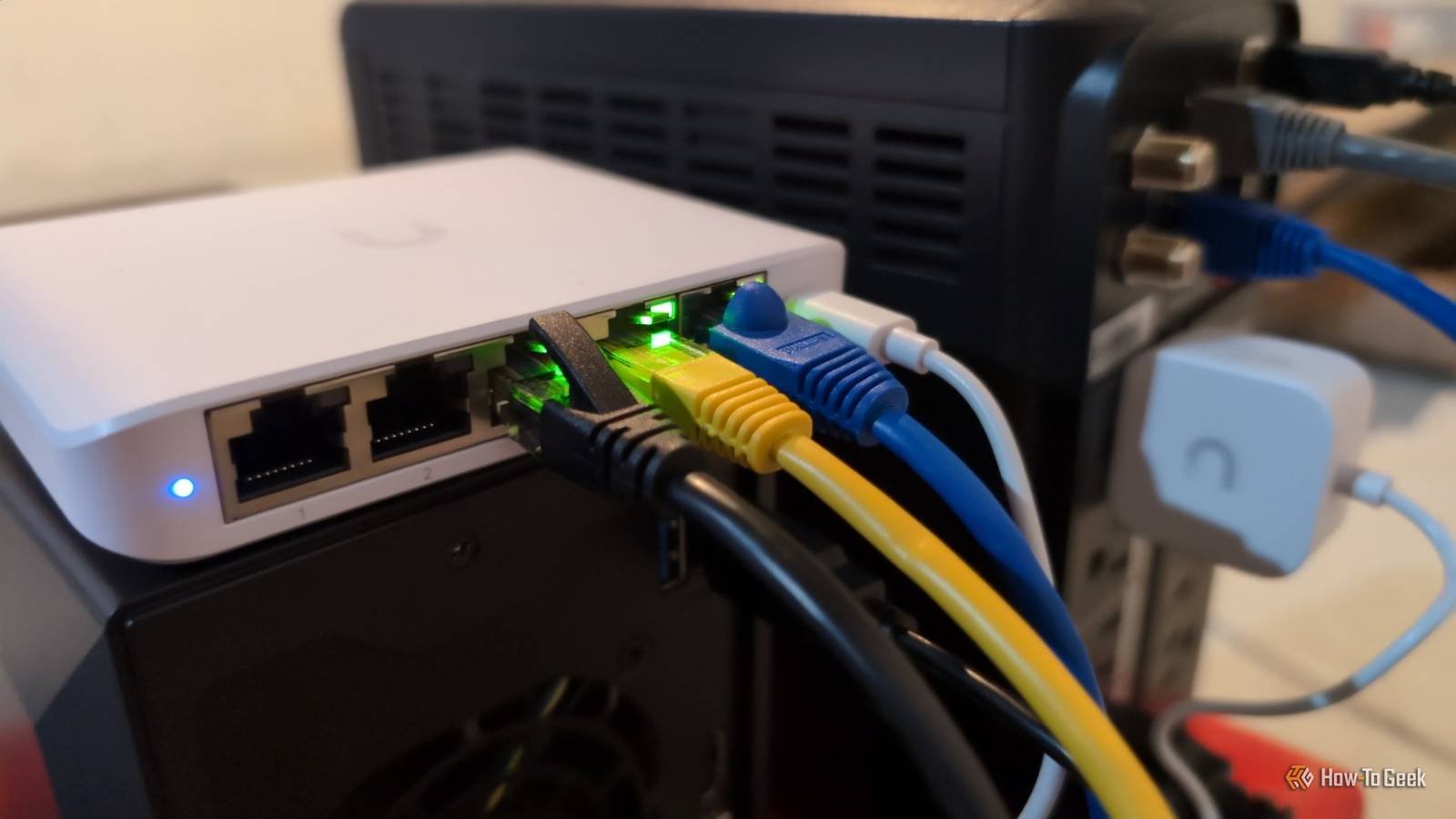
One of the things I use the terminal for in Windows, both in PowerShell and WSL, is to run basic network diagnostics. These are the commands I use most frequently.
whistle
Is that site up or down?
This is a basic network command. This was the first one a community college networking class instructor demonstrated in the command prompt. This was in the days before PowerShell existed.
ping sends packets to a remote system and waits for it to return them. This is useful for determining if a site is down or if its network connection has failed.
For example, to ping Google:
ping google.com
You can also ping IP addresses:
ping 192.168.0.1This will send four packets to Google. If your connection and the remote site work, you’ll get some responses.
You will also see other information. You will see the round trip times, the packet size in bytes, and the TTL or “Time to Live.” This number defines the maximum number of hops a packet can make before being declared “dead.”
You’ll also get some statistics, such as minimum, maximum, or average ping times. The latter will probably bother statisticians, but “average” refers to the mean, as it does among normal people.
You can change the number of responses with the -n option.
A “Request timed out” message does not necessarily mean that a host is not responding or that its network is down. Many hosts are configured to ignore ping messages for security, with the theory that if you can’t ping a machine, you can’t access it.
ping version (WSL)
Ping forever on Linux
On Windows, I tend to spend more time in Ubuntu on WSL for command line usagebecause there are many more programming tools on that side. I can too mix and match the two environments from the same command line. There is also a ping command.
It works almost identically to the Windows version:
ping google.com

There is a difference in the default behavior between the Windows and Linux versions of ping. While Windows will stop by default after four pings, the Linux ping command will run forever until you stop it by pressing Ctrl + c.
You can make it stop after a certain number of pings using the -c option:
ping -c 4 google.com
As with the Windows version, the Linux ping will show statistics on round trip times. It also includes the minimum, maximum and average ping times, but also the standard deviation, which will help you determine the distribution of ping times, reported as “mdev”.
If the ping command is not found, try installing the iputils-ping package:
sudo apt install iputils-ping
tracert
Trace the path your packages take
Windows also includes a tool to run a traceroute, or a route through the networkfrom your machine to a remote hostname or IP address. it’s called tracert
Do you remember TTL? tracert works by setting the TTL to 0 and incrementing it by 1, listing the node that responded with each packet.
To use it, you can use the tracert command similar to the ping command:
tracert google.com
You will see the local nodes of your ISP, through some exchange. A large ISP will have many exchange points of its own.
As with ping, many nodes will not report. This will be represented as blank entries. It’s interesting to see where these packages go. The routes can change at each step, because Internet routers can choose different paths. There is also notable consistency, because nodes are pretty good at optimizing themselves nowadays.
tracking route
The Linux version of tracert
As with ping, tracert on Windows has a WSL counterpart. It’s called tracepath and you can install it via apt:
sudo apt install iputils-tracepathYou can also use it similar to tracert:
tracepath google.com
I find that the Windows tracert command seems to work more reliably, as much as I love Windows and WSL. This could be due to how it runs as a native program and is therefore closer to the networking hardware.
I can call tracert from the Linux side by simply adding an “.exe” in WSL
tracert.exe google.com
metro
Combine a ping and a traceroute in WSL
If you were looking for a command that could combine the features of ping and traceroute, you’re in luck if you use WSL. MTR is a tool that does just that. You can install it in WSL with this command:
sudo apt install mtrYou can use it in the same way as ping or tracert:
mtr google.com
By default, it will display a viewport with the combined ping and traceroute running continuously, but the -t option will cause it to run in the terminal.
You can set a shell alias to permanently alter its behavior if you wish.
ipconfig
Check your network interfaces
The ip command in Linux allows me to examine the status of network interfaces, but its usefulness is limited in WSL because these are virtualized interfaces. The Windows command line counterpart is ipconfig.

I can enter the command when prompted to see all active adapters.
It would probably be best to use the Settings or Control Panel menus to configure the networking hardware if necessary.
netstat
View open connections
Another useful command is netstat, which allows me to see all open network connections.
Simply type “netstat” in PowerShell or at the command prompt. To exit, press Ctrl + c.

This can be helpful in troubleshooting any security issues. Simply run netstat and make sure to take into account all open connections.
route
Which way to the Internet?
Another useful command is route, which displays the routing table:
route printIt would probably be more useful to me if I didn’t have Wi-Fi with only one Internet connection. My packets to and from the outside world can only pass through the router and cable modem.
Networking from the Windows command line
With PowerShell and WSL, you can quickly run diagnostics to troubleshoot network problems in Windows. Whether you want to know if a site is down or want to learn more about networking, the Windows command line is a good place to start.



