

valve finally brought back the Steam Controller this year. The second-generation platform launched on May 4 for $99, with two trackpads, TMR magnetic sticks, four rear grip buttons, and the small 2.4GHz puck that doubles as a charging dock. It sold out in less than an hour, and by afternoon the $99 SKU was gone. People were experiencing transaction errors mid-purchase and eBay listings were already between $230 and $250. Valve has since opened a pre-order queue, but if you missed the first drop, you’re now waiting in line.
However, if you already have a Steam Deck, you already have the guts of a Steam Controller. The Deck has two haptic trackpads, a gyroscope, and a full set of sticks and buttons, which is most of what made the Steam Controller worth wanting in the first place, and you can actually use it with your PC to play games. However, there is a problem with the way you connect it: the Deck will not be listed as an HID gamepad when connected to a computer, as it is a PC itself with no USB device mode. The same thing happens with Bluetooth; a host that pairs with controllers rather than a device that pretends to be one.
People have been asking Valve for a native solution to using Deck as a controller for years, and so far all working methods route Deck inputs over their network. You stream to the platform and the trackpads, gyroscope and haptics return to the PC as part of the same connection. As a result, it’s not a true wired controller and, to be honest, the pad is a little uncomfortable to hold for hours. But hey, it works and it’s free if you already have the hardware. For now, it’s filled the gap perfectly while I wait in line to pick up the new Steam Controller.
Steam Link turns the Deck into a remote gamepad
It is a free app on Discover.

The path I chose to get this working uses the standalone Steam Link app instead of the Remote Play stream that’s built into the Steam client. You install it from Discover in desktop mode, where it appears in Flathub like any other Flatpak. Both machines must be on the same network and logged into the same Steam account, and Steam Link will find your PC on its own. The first connection asks you to confirm a PIN on the host to pair the two and then remembers the PC.
Once connected, your PC’s desktop is streamed to the Deck and the Deck becomes the input device for anything you boot. He It basically treats the Deck like a Wii U GamePad.a combination screen and controller that talks to a console located elsewhere in the house. You hold the Deck, the game runs on your PC, and the trackpads and sticks control it. Nothing actually installs or runs on Deck beyond the Steam Link client, so it doesn’t matter if the game is in your local library or not.
For latency, you’ll want to go into the streaming options and reduce the resolution, since you’re not actually seeing the Deck screen. There’s no reason to stream a sharp 1280×800 image to a screen you’re not even looking at, and a lower resolution gives the connection more room for input. Steam Link also exposes a bandwidth limit and switch for hardware decoding, both of which are worth setting it and forgetting it.
Over Wi-Fi, it’s fine for most games, but you can remove Wi-Fi from the equation on both ends. Put the PC on Ethernet, which it probably already is, and run the rig through a dock or USB-C to Ethernet adapter, and you’ll have an end-to-end wired path. There’s still no direct USB controller cable to do the job and inputs still travel over IP, but a wired local network reduces jitter and latency to the point where most people stop noticing it altogether. For more sensitive games (watching you, sky blue fans), could be a problem, but will be fine for most titles.
This is the closest thing to the “wired” idea that people are looking for. There’s no setup that turns the Deck into a wired gamepad, so the closest you’ll get is a fully wired network between the two machines.
Closing Steam in desktop mode gives up the trackpads and haptics
It looks like a native game most of the time.
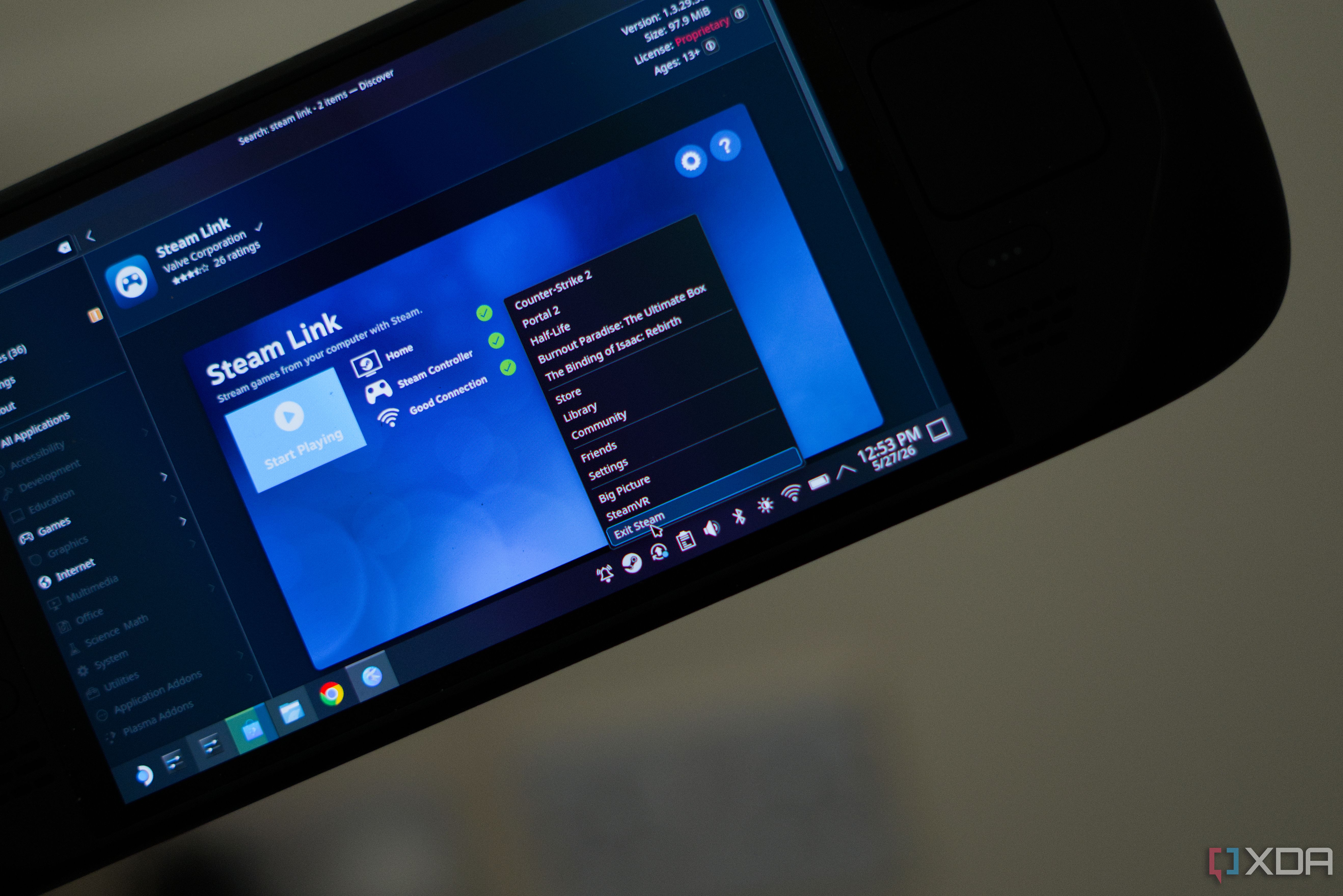
The reason I suggest using the Steam Link app instead of the built-in remote comes down to how the Deck handles its own controls. If you launch Steam Link from Game Mode, the Deck’s own Steam layer is still running underneath and wants to have a say in how the trackpads and Steam button behave. You end up fighting two layers of Steam Input for control of the same hardware.
The solution is to go to desktop mode, close Steam completely, and then open the Steam Link app on its own. With the local Steam client out of the way, the Steam input settings coming from your PC take full control of the Deck. The trackpads, haptic feedback, Steam button, and rear grips respond to the layout of the host machine’s controller rather than the Deck’s local one.
This is especially important for trackpads, around which the Steam Controller’s entire identity is arguably built. They offer greater control and a fantastic tactile sensation; They’re something no other Xbox-style gamepad can replicate. Letting the host’s Steam input own them means that a game set to pointing or scrolling on the trackpad behaves as it would with a real Steam Controller connected.
With that, it feels like a real The controller for your games and FPS titles that support it even have a gyroscope on top of the device to make precise adjustments, just as they would if they were running natively. The tactile feel under the pads gives you the same textured feedback you’re used to and overall feels like a complete setup.
The only downside is that you’re operating without desktop mode, which feels a little bad the first few times. You are closing the software that the Deck is built on in order to use it. However, once Steam Link is running and connected, you forget about it and get the cleanest version of the trackpad experience the Deck can offer.
VirtualHere brings you closer to a real controller, with more complications
It’s a lot more work.

There is a second route if you want the Deck to show up in Windows as an actual Steam Controller instead of a streaming target. VirtualHere is a USB over IP tool that exposes the platform’s internal Steam Controller HID over the network, and the PC running the VirtualHere client sees it as a native driver. For Windows, it’s just a Steam Controller that is connected.
It’s more complicated than I would recommend for most people. You’re setting a user password on Deck, putting a Linux binary in a folder, adding it as a non-Steam game so Game Mode can start it, and pointing the client to Deck’s IP and port. It asks for that password every session and getting out cleanly can be quite a hassle.
For non-Steam launchers, or for cases where you want the OS to treat the Deck as a connected gamepad, it’s the best option. For everything else, Steam Link asks you much less and allows you to play faster, which is why it’s the one I like to use the most.
Not the Steam Controller, but a Steam Controller-shaped object that you already have
The Steam Deck works quite well for this.

None of this makes the Deck the new Steam Controller, and it’s worth being aware of the limitations of a setup like this. The Deck is heavier and wider than anything you’d choose to hold as a pad (unless you like the Wii U, I guess?), the sticks are not drift-proof TMR units, and you can only use it with devices on the same network. The previous Steam Controller could pair with anything that accepted a Bluetooth controller, although with a little work. If you want the real thing, the reservation queue is the only honest answer.
All that said, the pieces that make the Steam Controller unique, like the trackpads and haptics, are found on the portable device that many of us already own and can be used for all kinds of things. Shutting down Steam and streaming over a wired network gives you those pads controlled by your PC’s Steam input, for the cost of an app you can install in two minutes.
I still prefer to have Valve’s shiny new Steam Controller on my desk, but until I can get one, Deck is doing a good job of filling that gap.



