

If you have a new pair of headphones, but the sound quality is barely better than the previous pair, you’re not imagining things. Android often defaults to Bluetooth settings that prioritize stability and low latency over pure sound quality, which can hold back audio. If music quality is important to you, it’s worth tweaking the settings to maximize sound quality.
At the same time, there are a lot of so-called “audio upgrades” floating around on the Internet that don’t really help much. In fact, they can even make things worse. Here are some settings worth changing, along with some you can safely ignore.
3 settings that can improve Bluetooth audio
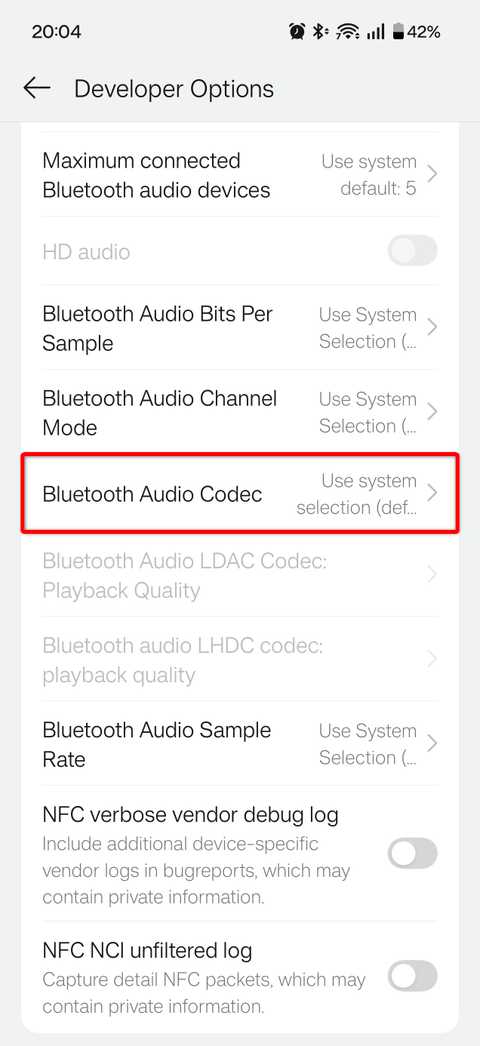
Switch to a high-quality Bluetooth codec
Not all Bluetooth codecs are the same
The most effective setting you can change on your phone to dramatically improve sound quality is change Bluetooth codec. It’s essentially the translation layer between your phone and your headphones.
SBC is the lowest common denominator that works in almost any Bluetooth audio device. It has a reasonably high maximum sample rate of 48 kHz, which is considered “DVD quality”, along with a maximum stereo bit rate of 512 kbit/s, which is sufficient if you only listen to MP3 files or stream standard quality music on services like Spotify.
However, if you listen to lossless audio formats like FLAC or have Spotify losslessSBC becomes the limiting factor.
LDAC and LHDC support the highest sample rates, and you should use one of them if your headphones support them as well. Also, make sure to change the playback quality while in settings.
aptX Adaptive also provides excellent bitrate. The name “Adaptive” refers to the codec’s ability to dynamically change the bitrate based on current conditions, making it a solid set-it-and-forget-it option, if supported. aptX standard and aptX HD are solid mid-level codecs.
AAC is designed primarily for Apple devices, so its performance varies depending on the headset and phone, but it can provide better sound quality than SBC in some configurations.
To change the audio codec on your phone, first plug in your headphones. Go to Settings and find Developer options (You must enable them first.) Scroll down to Bluetooth audio codec and select LDAC. If your phone doesn’t let you select it, try something else:support depends on your headphones.
Another way to change the codec is to enable high definition audiowhich tells your phone to automatically select the best available codec.
Turn off your phone’s audio enhancements
Surround sound can ruin your music
Your phone likely contains numerous audio enhancement features. Some common ones are virtual surround soundwhich gives you a 3D audio effect when watching movies and playing games, bass boost that increases bass, equalizers that dynamically select the “best” sound profile based on the content, etc.
While these audio improvements sound like an interesting concept on paper, they can create problems with sound quality, especially when it comes to music. Virtual surround sound is the worst offender because music is typically recorded and mixed in stereo.
When a virtual surround layer is applied over it, the software tries to “guess” where those sounds are supposed to go in a 3D space, and the end result is that it can destroy the soundstage and the artist’s original intention. It also introduces various sound processing artifacts that can make everything sound hollow and tinny.
Automatic equalizers, on the other hand, change the frequency response of your audio. This is not necessarily a bad thing and you may even want to do it. use an equalizer which takes into account the natural frequency response of your headphones to create a more balanced “corrected” sound. However, leaving the automatic equalizer enabled on your phone may result in misconfigured frequency response or double processing.
To disable these various sound processing features, go to Settings > Sound and vibration. Scroll down to Sound effects (or the equivalent option) and turn off everything you see. If the automatic equalizer can’t be turned off, like on my OnePlus 15, you might be able to set a custom one and flatten it completely.
Disable Bluetooth scanning in the background to reduce wireless interference
Make your wireless connection as clutter-free as possible
Bluetooth relies on the busy 2.4 GHz wireless spectrum for communication. This frequency is shared by everything from Wi-Fi routers and smart home devices to microwaves and baby monitors.
While you can’t control the entire 2.4 GHz band inside and outside your home, there are some things you can do to minimize interference. A particularly important one, especially when the interference comes from your own smartphone, is Bluetooth scanning.
This feature allows your phone to search for nearby devices at any time to improve location-based services, even when Bluetooth is disabled, but it also adds activity in an area where you want the least possible interference, resulting in worse signal stability between your phone and the headphones.
To turn off Bluetooth scanning, go to Settings > Location > Wi-Fi and Bluetooth scanning and turn off Bluetooth scanning.

3 settings that won’t really improve your sound
Higher numbers don’t always mean better sound
If you dove into Developer Options to change your Bluetooth codec, you may have come across the option to change the sample rate.
Changing it from 44.1 kHz to 192.0 kHz seems like the easiest way in the world to quadruple your sound quality, but the truth is that changing it from the system default does more harm than good.
If you try to force a higher sample rate than the music you’re playing, you’re forcing your phone to fill in the data gaps with virtually nothing. Frankly, you should let your phone negotiate the best sample rate automatically.
Disabling absolute volume is troubleshooting, not sound improvement
Another common “optimization” you’ll hear about is disabling Bluetooth absolute volume (also known as Device Volume Sync on some phones), with claims that it improves dynamic range or sound quality. This setup simply links your phone’s volume controls to your headphones so they fit together.
Actually, disable absolute Bluetooth volume It’s more of a troubleshooting step. It may help fix issues like inconsistent volume or clipping on certain Bluetooth devices, but turning it off won’t improve the sound quality of your headphones on its own.
Switching from stereo to mono does not improve audio quality
Disabling stereo audio in favor of mono audio is another “magic pill” solution that some people say improves sound quality on Bluetooth devices.
Mono audio combines the stereo channels (left and right) into a single channel, and the only time it can be useful is when using a single headphone. Audio is often mixed with stereo in mind; For example, some instruments are shifted slightly to the left or right to create a wider sound. sound stage—So switching to mono allows you to hear everything through a single earbud.
However, in any other scenario, it will generally hurt your music listening experience by making it more difficult to distinguish individual instruments and reducing the sense of space that the artist intended.
The best sound improvement is still a new pair of headphones
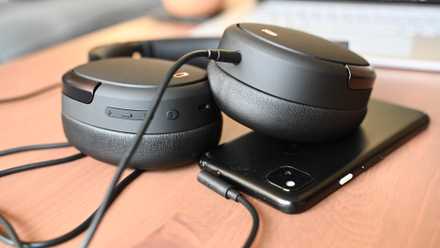
While you can (and absolutely should) modify your phone’s Bluetooth settings to improve sound quality, this can only help you so much. Upgrade to a more premium pair of headphones It is the most effective way to dramatically improve sound quality. Additionally, you can’t take advantage of advanced Bluetooth codecs if your headphones don’t support them.

- IP Rating
-
IP57
- Charging case included?
-
Yeah
The newest Galaxy Buds4 Pro offer improved two-way speakers, ANC, voice detection to raise the level of ambient noise when you’re in conversation, and more.



