
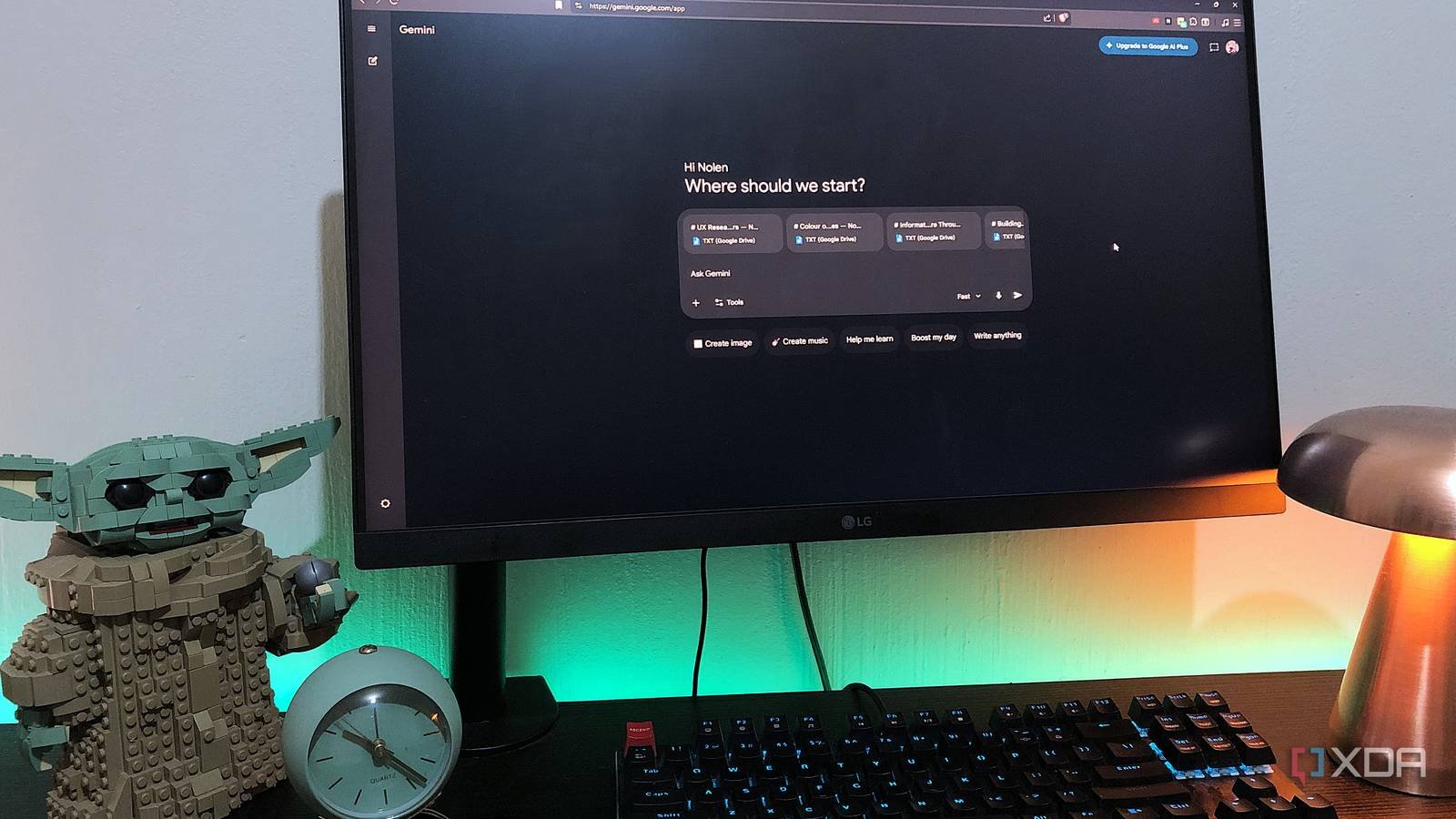
Most Obsidian-AI integrations I’ve come across work the same way, just in one direction. Typically you have to install a plugin in the Obsidian app and bring in your model that way, and it sits in the sidebar or as an online wizard. But I wanted it the other way around: my vault inside the Gemini interface. That way I could keep using the things they do Gemini really useful for mewhich are the extras like Guided Learning, Gems and Canvas. Adding a Google AI chat panel to my notes app wasn’t the same.
Google Drive was the obvious bridge here. It’s a Google product that can communicate directly with Gemini, so bringing my vault into Drive, which then arrives in my Gemini workspace, seemed like the easiest path compared to the Obsidian plugins. Setup only takes a minute and changed my Gemini workflow for the better…

Setup consists of just two steps.
You set it once and forget it
You need to have the Google Drive desktop app installed, and from there it’s just a matter of pointing it to your vault folder. From the app, simply press “add more folders to sync”, choose your vault, and you’re done. Drive will extract everything from your vault, even if the files are sorted into more subfolders. This is probably also a good point to check if there is anything in your vault that you would prefer not to sync with Google. All the contents of my vault appeared in Computers > My Computer in Drive and kept my folder structure intact.
Introducing it in Gemini is the same type of non-event; Drive is already built into Gemini, so simply select Drive from the plus icon pop-up window. Depending on the settings you started with, you may be prompted to connect Google Workspace through your account settings. After that, all your synced vault notes should be recoverable from the Drive option.
What am I using this for?
Easy access to my vault makes everything faster and easier
Most of my vault notes are research snippets, project summaries, drafts, and ideas. I can now use them within the Gemini workspace with its other functions. Whenever I’m doing a study session, I just take the notes I already have on the topic, which is combined with Gemini knowledge and web access, and pretty much based on the context of the chat. Basically, I learn from my own notes through guided learning.
one of my The main features of Gemini are the canvas.which I use to create interactive content and design prototypes. Funneling my design notes directly from Obsidian into chat means I don’t have to search for or copy them when I want to practice or explore visual concepts. My entire brief is already somewhere in my vault, all I have to do is attach the text file to my message and Gemini will start generating the concept in the separate Canvas window.
I also use Gemini to interact with my notes rather than just using them for context. It’s an easy way to scan drafts of my novels for conflicting stories or incorrect interpretations. It’s also a fun way to get an overview of, say, your grades from six months ago compared to now, which can give you an idea of the progress you’ve made.
Gemini’s Gems is another place I use my obsidian notes. Gems are essentially custom versions of Gemini. You build once: you give them a set of persistent instructions and upload reference files, and every time you open that gem, it already has that context loaded without you having to add anything again. So I access my vault via the Drive option in the Knowledge tab and grab what I need for the gem context.

There are compensations
A small inconvenience and a personal decision.

Google doesn’t publish a hard token limit for free users, but the gist is that more intense sessions (longer conversations, larger files, more notes uploaded) eat up your daily quota faster than a quick question. I don’t know the exact number because Google doesn’t say it, but I’ve noticed it. Sessions with a folder full of notes attached seem shorter than sessions where I just ask something simple. It’s not a deal breaker, just something to keep in mind if you plan on dumping your entire vault into each chat.
Privacy is more personal. My notes from the vault are now on Google and I made that call deliberately. Part of why I use Obsidian is that the vault is just a folder of plain text files on my machine with no proprietary format or database. That same quality is what makes Drive sync so easy to set up. Whether it’s a worthwhile trade-off is really up to you: I value convenience more than I care about keeping my design research notes outside of the Google ecosystem.
Give my Obsidian notes some useful work
This is a setup that requires very little effort but great reward. Drive only takes a few minutes to sync and Gemini integration is one-button. Once set up, I can bring my notes into any Gemini session and use them alongside other tools and features. I think if you already use Obsidian and have a Google account, there’s no real reason not to try it.

- SW
-
Windows, macOS, Linux, iOS, iPadOS, Android
- Individual prices
-
Free normally; $4/month for Obsidian Sync



