

For a long time I treated my smartphone like, well, a phone with just a few extra features. Sure, I could browse the Internet and work on documents, but I largely relegated my mobile device to being nothing more than a phone.
Then I discovered the hobby of playing with Android and doing experiments in my makeshift laboratory at home. After that, I saw the phone as an extension of my computer or something I could use to do things.
I’ve rounded up some of my favorite “hidden” or lesser-known features that I think are worth checking out once you know how to find them (and if you have a Samsung Galaxy device, of course).
I’m using a Samsung Galaxy Z Fold 5 with One UI 8.5 for these features. Most Samsung Galaxy phones are likely to have similar features, but results may vary.
DeX, the desktop extension feature
The evolution of a desktop experience

Samsung offers a unique mode called DeX Although it is easily accessible, it is probably not something you have given much thought to on a day-to-day basis. If you’re lucky enough to have a Samsung phone that offers it, DeX can be a game-changer for productivity. It also supports Bluetooth keyboards and mice, so it acts as a way to comfortably use your phone as a “desktop experience.”
On my phone, it could be accessed directly from the top menu. Wireless DeX is available on devices manufactured after 2018. Fortunately, my device falls into that category. That doesn’t mean DeX is dead. It simply means that the classic DeX design has been revised to better align with multi-window usage. It’s a welcome development for a useful feature that makes it even easier to simulate a desktop experience with your phone.
You can also use an adapter cable to connect your phone to any HDMI display, if you prefer to go that route. DeX on PC allows you to connect your phone to a PC to use DeX with a USB cable.
Compatibility may be an issue, so check your device in this handy list of compatible devices directly from Samsung.
Experimental features that transform your device into more than just a phone
Samsung Galaxy phones often include a somewhat hidden feature called Labs. They are, as the name suggests, experimental features specific to different Galaxy phones. According to Samsung itself, some of the applications may not work properly. To find and enable Labs, simply navigate to Settings > Search > Labs. From there, you’ll be able to see what’s available on your phone.
The My Labs menu only showed dark mode, Multi Window for all apps, and landscape view for portrait apps, but when you click Multi Window, it offers other useful Labs features like Slide to Split Screen (which is incredibly useful in unfolded mode) and Slide to Popup View (which I find much less useful and don’t really use).
I use my Samsung for hobby projects, compositing, some light coding, budgeting, and work-related tasks, so multi-window is one of the features I use most frequently. I accidentally discovered that if you take a screenshot in multi-window mode with this feature enabled, it allows you to keep the image of both open apps together, either you can take a screenshot of just one of the apps.
I also recommend enabling landscape view for vertical applications. If you’re like me and use landscape mode frequently, then this is a fantastic feature for both folded and unfolded modes. I don’t really need to talk about dark mode, but is available and I use it on basically everything.
On non-foldable phones, Labs will offer different features depending on the brand and model.
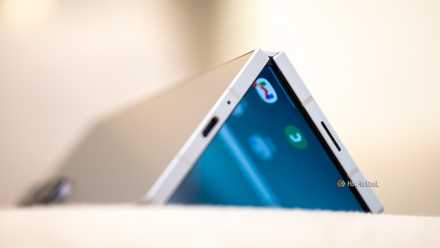
Flex mode turns your phone into a small laptop
Touch functions and a small screen

Have you ever wanted a small laptop? Of course! Flex mode provides something like that. So this is technically an advanced feature (found in settings > advanced features > flex mode panel) which can be enabled in the same way as the other features I mentioned before. The idea here is to angle the phone, so that the top screen is essentially perpendicular to the bottom screen.
It has some unexpected features, like a touchpad on the bottom screen that gives you a mouse pointer so you can navigate your phone as if it were a computer (there’s no mouse button; you have to touch the screen for it to act as a ‘click’). You can also lower the overlay, take a screenshot, or open a different app on the bottom screen with just a simple tap.
It works for me because I type a lot, have to take a variety of screenshots, or just like to play with experimental features on my phone. I like this mode almost as much as multi-window mode.
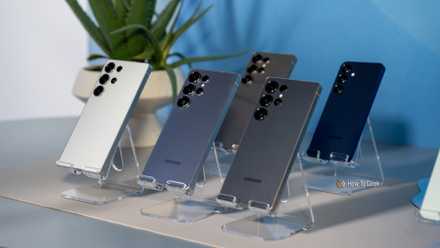
Samsung phones are powerful computers

The experimental features really made a difference for my phone, but they’re just the beginning of what can be done with Android. In the past, I’ve turned old Android devices into dedicated music players, turned one into a laptop substitute on the goand set up an old Motorola as an Android TV hub.
Hidden and experimental features are half the fun of having a powerful computer in your pocket. Sometimes it makes the world feel so much more trip to the stars every day (I’m a Next Generation and Titan fan, myself).

- Brand
-
Samsung
- SoC
-
Qualcomm Snapdragon 8 Gen2 mobile platform for Galaxy



