
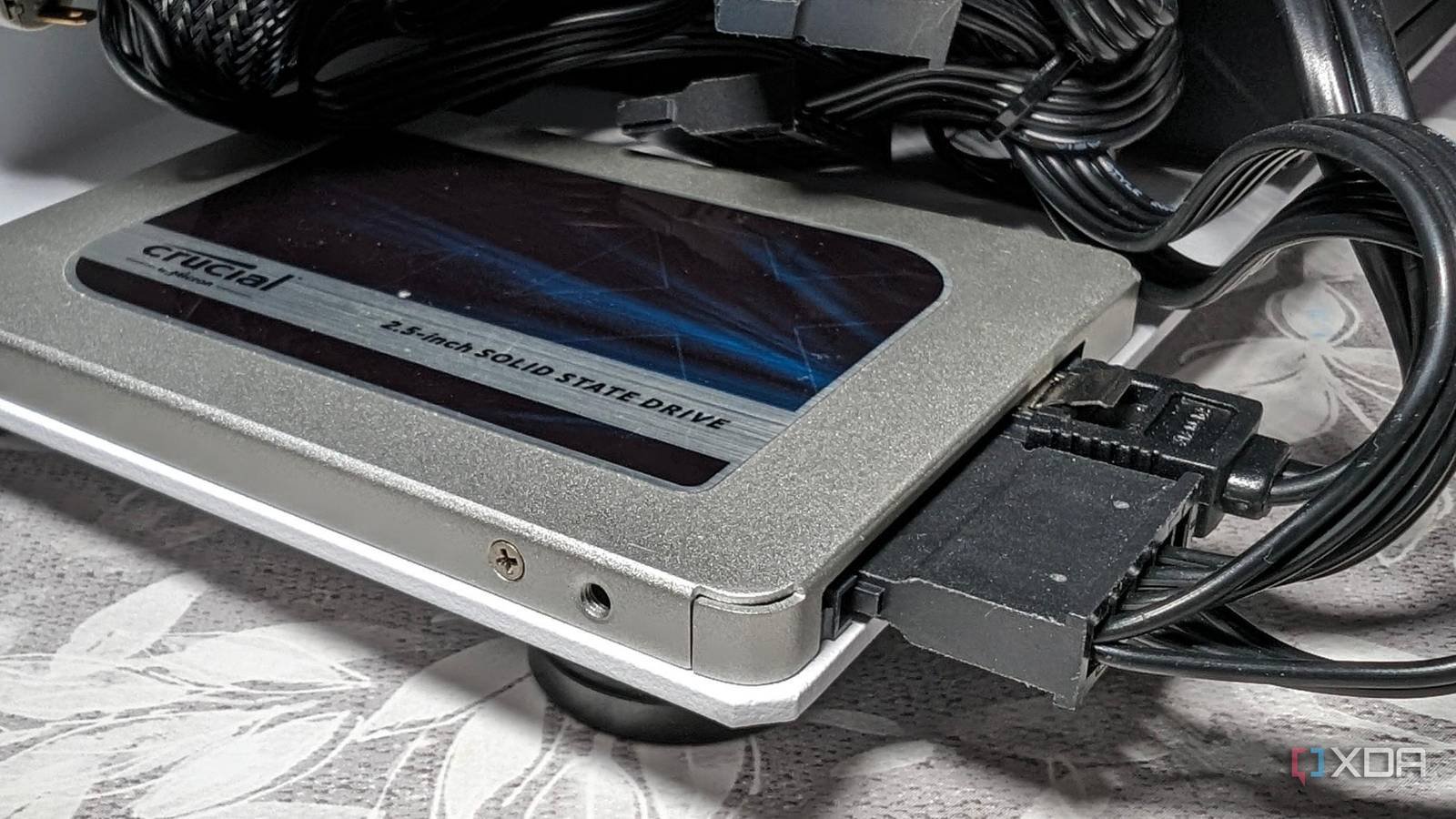
You’re probably wondering why anyone would change their SATA mode. It started the way many bad tech decisions are made late at night, while I was scrolling through TikTok, paying half attention, when a tech video caught my eye. This video appeared claiming that changing the SATA mode in the BIOS could “unlock performance” from your SSD. The creator made it simple: go to BIOS, change a settingreboot and enjoy a faster system. There were definitely no risks mentioned or explanation of why I should change it just to increase speed, but my curiosity prompted me to give it a try.
It sounded harmless enough, especially since it had a large number of views. And like most people who enjoy tinkering with their settings, I figured I had nothing to lose. So I restarted my PC, went into the BIOS, found the SATA mode setting and changed it. That’s when everything went wrong.

The moment everything broke
The panic
After saving the changes and rebooting, my PC didn’t behave like it used to. Instead of booting into the OS, I was stuck staring at a loading screen that went nowhere. I tried restarting again. Same results. Then again. Still nothing. That’s when I realized I needed to start troubleshooting. I didn’t suspect that I had caused the problem.
My first thought was that I had somehow damaged my SSD or corrupted my system, even though everything seemed normal. The PC turned on, the fans spun, but the system did not boot. It was just a PC showing signs of life but refusing to function properly. At the time, I didn’t think SATA modes could have been the problem. This all started with a simple change. I even started thinking about buying a new SSD and reinstalling the OS. Losing files was not something I was worried about at the time.
What I really changed
I almost lost everything

The setting I changed was SATA mode in the BIOS. If you’ve never touched it before, it’s usually found silently in your motherboard settings with options like AHCI, IDE, and RAID. Most people tend to leave them at the default, which is AHCI, and honestly, in my opinion, that’s exactly how it should be. At the time, I didn’t fully understand what those modes did. I just assumed that one of them would make the SSD run at full speed, making better use of its capabilities than the others, and so on. That assumption turned out to teach me a lot.
So after struggling to figure out why, I finally did what I should have done in the first place. I started by researching AHCI (Advanced Host Controller Interface). This is the standard mode for SATA drives. It supports better performance, especially with multiple operations, and allows you to connect or disconnect drives without shutting down the system, which is exactly what most systems need. It is already optimized for performance and compatibility. For IDE (Integrated Drive Electronics) mode, this is basically a legacy compatibility mode designed for very old systems, which means it is missing modern features and is much slower compared to AHCI. I didn’t bother trying the IDE; it would just do the opposite instead of improving performance. Then there’s RAID (Redundant Array of Independent Disks), which combines multiple drives for better performance or data protection.
After some research, it didn’t make sense why RAID failed on my SSD. If it claims to have better performance, why did I get stuck on a black screen? RAID is useful in servers or specialized setups, but requires proper configuration. Simply enabling RAID mode without actually configuring a RAID array doesn’t magically make a single drive faster; it simply changes the way the system expects to communicate with the storage device.
Why did my PC stop booting?
The driver does not match

The real problem had nothing to do with hardware damage, which was a huge relief. When an operating system is installed, it is configured to operate in the current SATA mode. In my case, it was configured for AHCI. That means the system had the correct drivers for AHCI enabled and ready to go. The moment I switched to a different mode, such as RAID or IDE, the system could no longer communicate with the SSD. As a result, he couldn’t even access the disk. The black screen made me think something was broken, but then I realized it was a communication failure.
After a bit of research and a lot of unnecessary stress, I went back into the BIOS and changed the SATA mode to what it was originally, AHCI. I saved the settings, restarted the PC and just like that, everything worked perfectly again. No data loss. Without reinstalling. No permanent damage. All the panic came from a setting I had changed without understanding what it was.
What I learned from this
The key takeaway is that not all performance tweaks you see online are real or safe. Even the ones that work can cause problems if you don’t understand them. Changing SATA mode is not a shortcut to improving performance. In most cases, your system already uses the optimal settings by default. These modes exist for compatibility and specific use cases, not just a quick update. The good thing is that this situation is avoidable. Fortunately, the setting wasn’t dangerous in itself, but blindly changing it caused a problem that seemed much worse than it actually was.
If you ever find yourself staring at a black screen after making that BIOS change, don’t panic right away. It is very likely that everything will be fine. You just need to set it back to how it was. Sometimes the best optimization is knowing when to leave things at their default settings.




